ZenBot Stock Scanner is now listed in both ChatGPT’s plugin directory and Claude’s connector directory. Add it in one click, sign in with your ZenBot account, and your AI can read your scans, check a stock, read a chart and build a scan for you, all from ZenBot’s live data.
No keys, no settings files, nothing to install. It’s part of ZenBot Turbo.
- ChatGPT: Add ZenBot Stock Scanner to ChatGPT
- Claude: Add ZenBot Stock Scanner to Claude
Why put a scanner inside your AI?
AI chat apps are great at reasoning and terrible at knowing what the market is doing right now. Ask one about this morning’s gappers and it either guesses or searches the web for stale headlines.
ZenBot fixes the “right now” part. When it’s connected, your AI calls the scanner for real data: the same scans, numbers and charts you see in the app, updated as the market moves. It answers from that data, not from guesses.
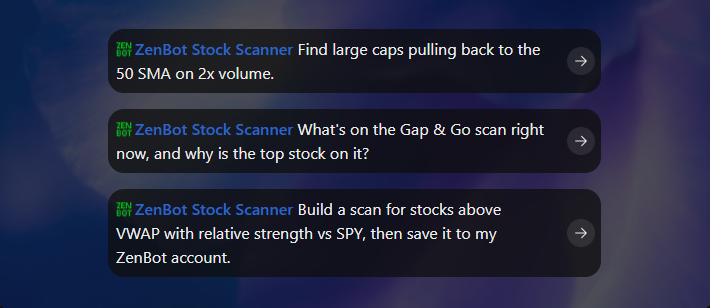
So you can ask things like:
- “What’s on my Gap Up scan, and which ones have news?”
- “Read the NVDA daily chart.”
- “Why is AMD on the Bullish Pullback scan? Show me each rule.”
- “Build me a scan for stocks near the 50-day average with rising volume, and save it.”
- “What’s interesting in the market right now?”
- “Plan tomorrow’s session from my Watchlist.”
Add it to ChatGPT
1. Open ZenBot Stock Scanner in ChatGPT’s plugins and add it. 2. The ZenBot login opens. Sign in the way you usually do and click Accept. 3. In a new chat, type @, choose ZenBot and ask away.
Add it to Claude
1. Open ZenBot Stock Scanner in Claude’s directory, or in Claude go to Settings, Connectors, Browse and search for ZenBot. 2. Click Connect, sign in to ZenBot and click Accept. 3. Start a chat. ZenBot is in the tools menu; make sure it’s switched on.
Add it once and it works in Claude on the web, the desktop app and your phone. In Claude you also get Ask Zen’s shortcuts under the + menu: Explain a chart, How is a stock doing?, What’s interesting right now?, Plan tomorrow’s session, Build a scan from a description, and Why is a stock on (or off) a scan?
What your AI can do with ZenBot
- Your scans: every built-in scan and your own custom scans, with the stocks on them now: price, move, relative volume, relative strength vs SPY, distance from VWAP, sector and more.
- Any stock: how the scanner sees it, including levels, the scans it’s on, earnings, options liquidity and headlines, plus every technical reading the scanner holds, from RSI and MACD to ZenTrend and the TTM squeeze.
- Charts: a Fast Chart image from 1-minute to daily, with the stock’s numbers, for your AI to read.
- The market: indexes, breadth, sectors ranked, the busiest scans, movers, ZenBot’s commentary and the week’s economic events and earnings.
- Build and test scans: describe what you want in plain words. Your AI finds the right filters, runs the scan live to show how many stocks pass each condition, and saves it to your account if you like it.
- Your Watchlist and alerts: read your Watchlist, flag stocks green, yellow or red, and turn a scan’s alerts on or off.
Your AI always asks before it changes anything in your account. Saving a scan, editing your Watchlist and switching alerts are the only things it can change.
What it won’t do
ZenBot describes what the market and each stock are doing. It never gives buy or sell advice, and neither does your AI when it’s answering from ZenBot. The decisions stay yours.
It’s also not a data feed. Results stop at 25 stocks, and no tool hands over raw price bars. Each connection gets 120 calls a minute and 2,000 a day, which is plenty for a full trading day of questions.
Cursor, VS Code, Claude Code and other apps
ZenBot speaks MCP, the open standard these apps use to connect to tools, so it works well beyond ChatGPT and Claude. On the Connect AI page, under *For developers*, click Make a key, then Add to Cursor or Add to VS Code, or copy the setup for Claude Code. ZenBot is also in the official MCP Registry as com.zenbotscanner/zenbot.
What it costs
Connect AI is part of ZenBot Turbo, $25 a month or $249 a year. There’s no extra charge from ZenBot, and your ChatGPT or Claude plan covers your AI’s side.
The full step-by-step is in the guide: Connect your AI.
I’d love to hear what you ask it. Tell me in the ZenBot Discord or with the Feedback button in the app.