A lot shipped over the last week. The short version: you can set an alert on any stock, the Watchlist is a proper panel beside your charts, and the charts now draw your alerts and let you move them. Everything below is live for everyone, free accounts included.
Stock alerts
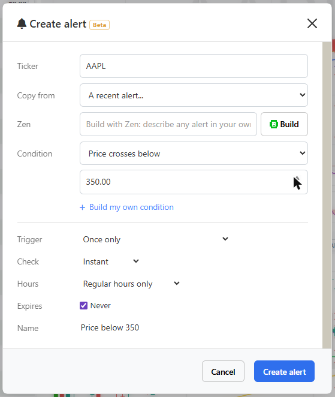
Pick a stock, pick a condition, done. A price crossing a level, ZenTrend turning, a Laguerre RSI reading, or anything you can build from the scanner’s filters. One stock per alert, so each one can be paused, extended or deleted on its own.
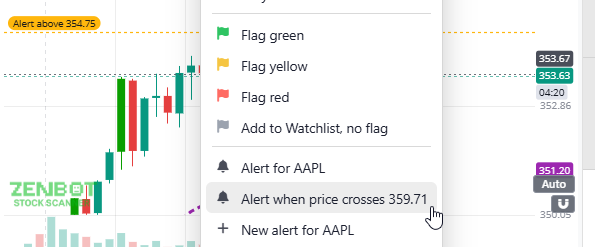
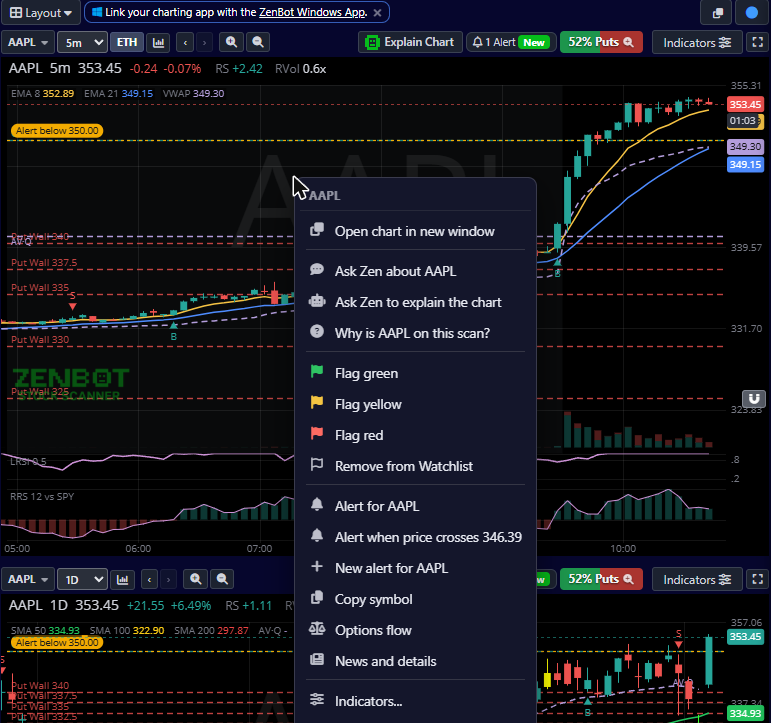
- The fastest way is on the chart: right-click at the price you care about and choose Alert when price crosses. If the pointer is on a line the chart already draws, a price target, an anchored VWAP or the edge of a zone, it picks that exact level.
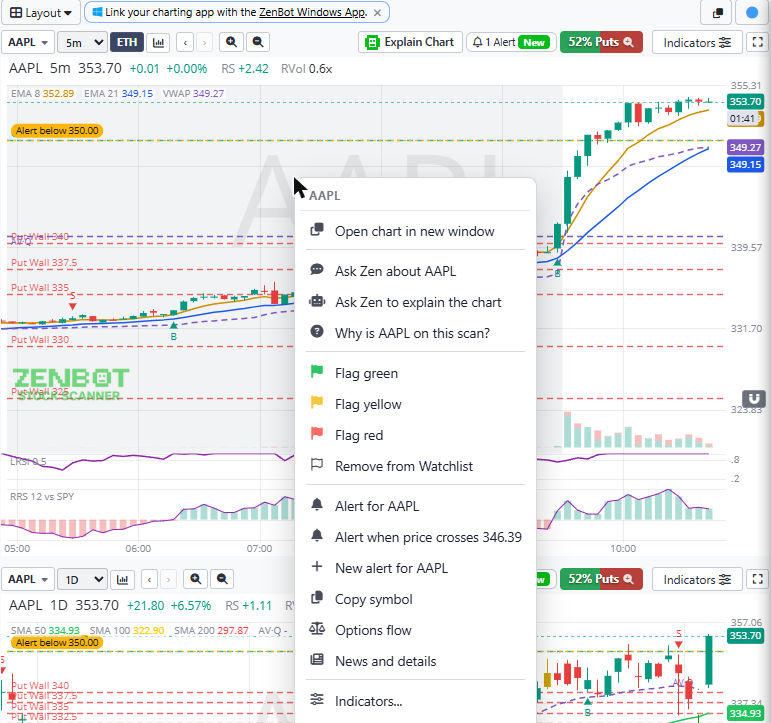
- The bell above every chart reads Alerts. On a stock with alerts it shows the count and opens them; on any other it starts one.
- Your price alerts draw on the chart as a dashed line with an Alert above 339.01 tag. Drag the line to move the alert. Click the tag to open it. Amber while it can fire, gray once it has.
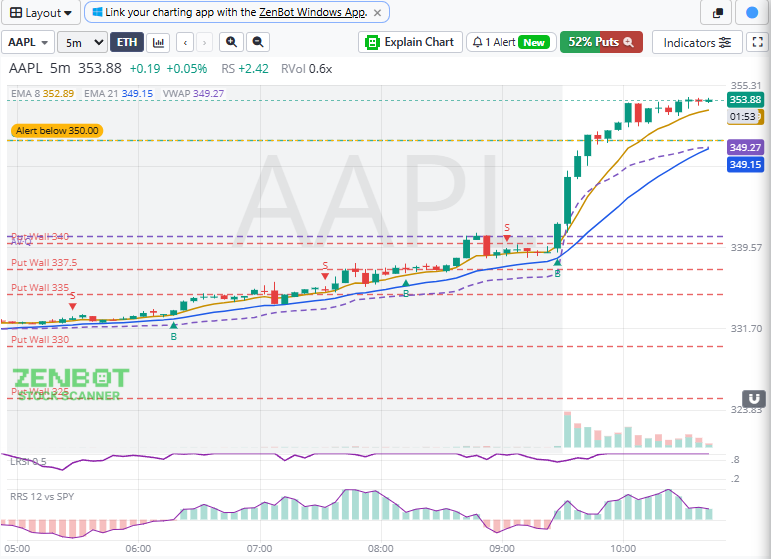
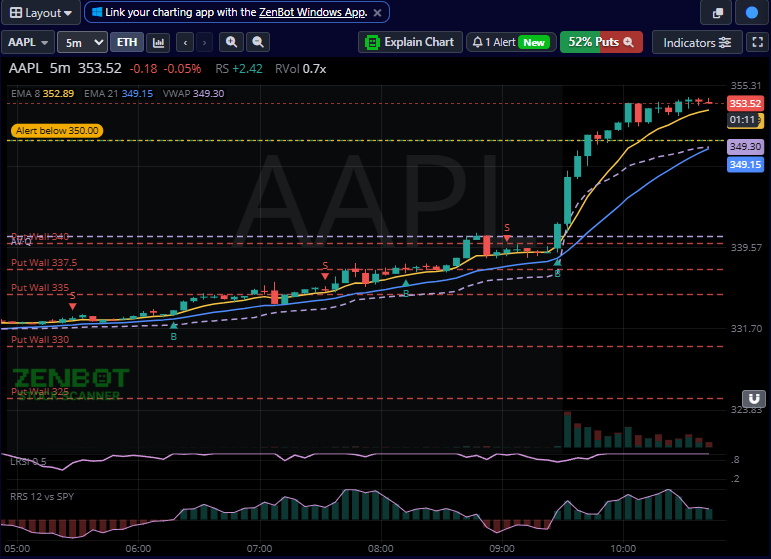
- A bell shows wherever a stock with an alert appears: scan rows, the Watchlist, search results, the stock card, even inside an Ask Zen answer.
- Free accounts get 5 active stock alerts, Turbo gets 100 with no expiry. Alerts reach you in the app, on Telegram and on Discord, and now on your phone or desktop as a push notification: Alert Settings, “Phone & browser push”.
- Ask Zen can set them up: “alert me when NVDA crosses 200” fills in the dialog for you to check.
ZenBot on your phone, with push alerts
ZenBot installs on your phone now, as its own app with its own icon, full screen, no browser bars. Do that and your alerts can reach you as push notifications, phone locked, app closed.
- iPhone: open zenbotscanner.com in Safari, tap Share, then Add to Home Screen. Push only works from the installed app on iPhone, so this step matters.
- Android: tap Install when the card above the scan results offers it, or use the Install app button in the bar.
- Mac and Windows: the Install app button in the bar, or the ZenBot Windows app from the Store.
- Then open the app from your home screen, go to Alert Settings and switch on Phone & browser push. That is it. Scan alerts and stock alerts both arrive there.
The Watchlist
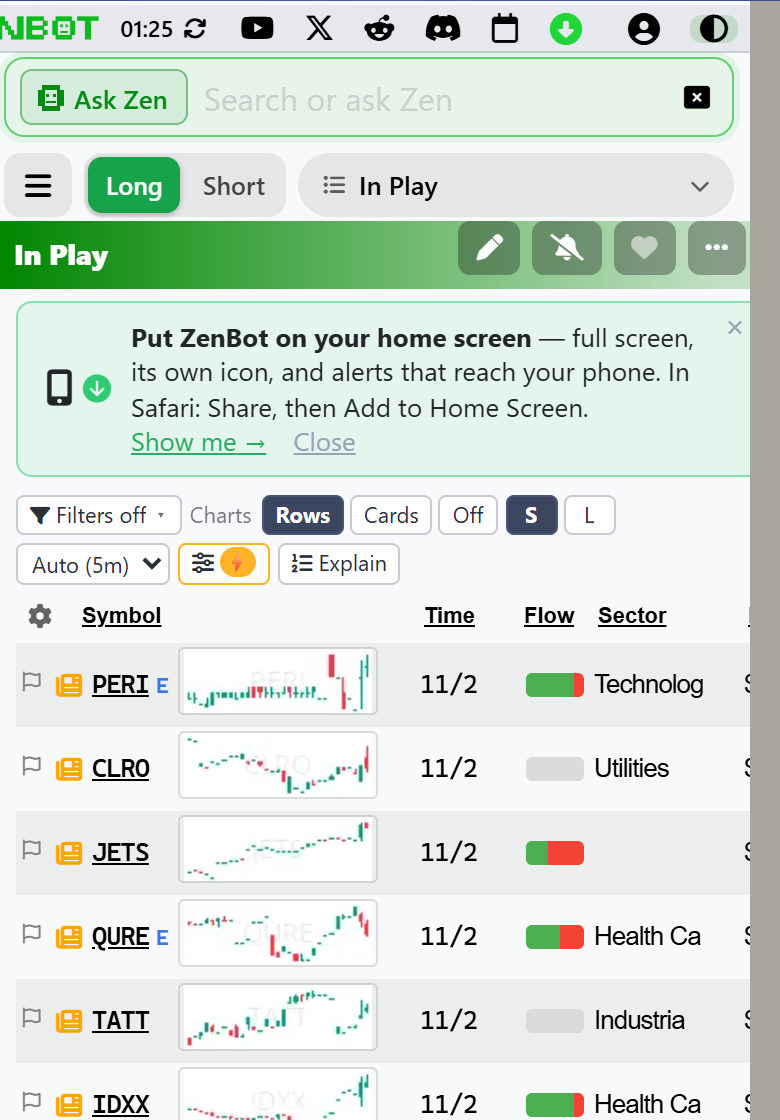
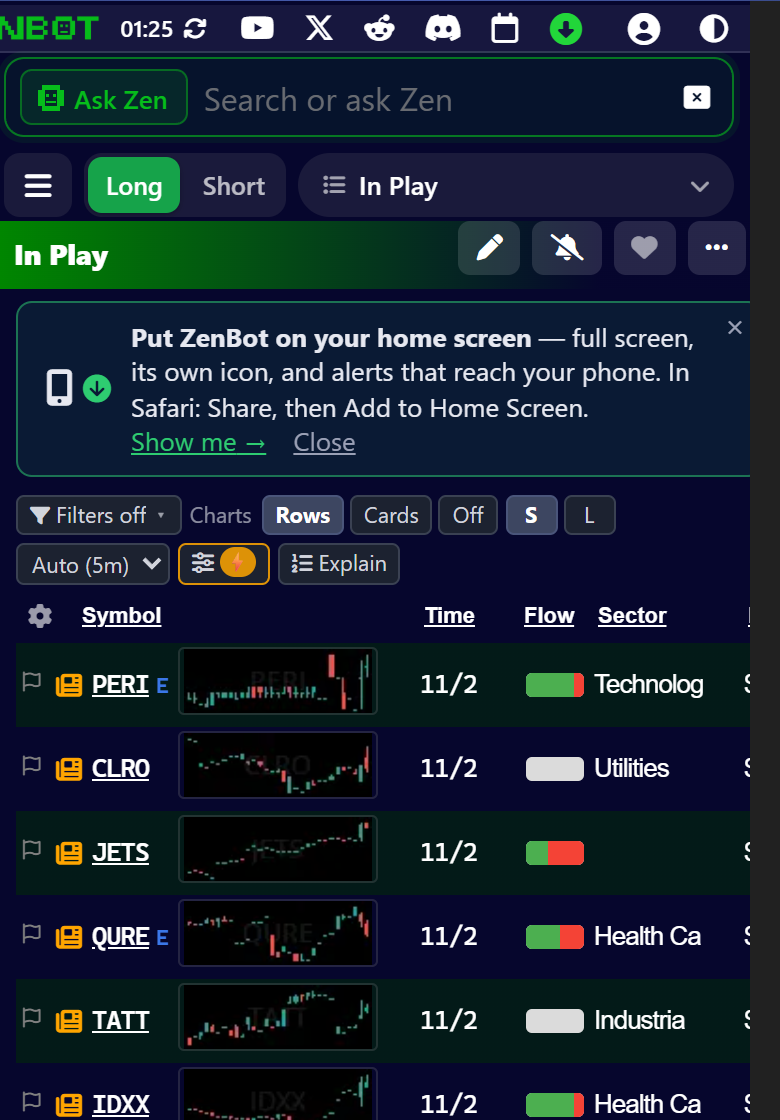
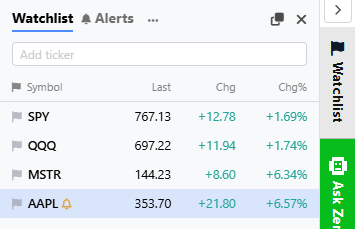
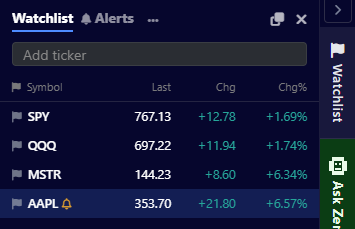
Flag a stock green, yellow or red and it is on the Watchlist. The Watchlist now opens as a panel on the right rail, beside the charts, with last, change and percent change, sortable by any column, draggable into your own order, and resizable by its edge.
- Type a ticker at the top to add one. Click a row to chart it; the up and down arrows walk the list.
- The Watchlist is also a scan in the sidebar, Long and Short, with every flagged stock in the grid and all the usual columns.
- Its Alerts tab lists your scan alerts and stock alerts with their state, and a Log of what fired.
- Pop it out into its own window and it stays open.
Charts
- Smooth charts, now the default. Fast Charts are drawn in your browser: drag in any direction, flick to coast, drag the price axis to stretch, drag the time axis to zoom, Shift-drag to measure. Double-click the price axis to reset.
- SPY shadow. SPY’s bars faded behind any chart. A stock climbing out of its shadow is leading the market.
- Higher Timeframe Zones (beta). Price areas where hourly and daily wicks have clustered over the last year, drawn on any timeframe, with an opacity slider.
- The premarket price. With extended hours off, the chart still shows where the stock trades now, in a yellow PREMARKET or AFTER HOURS box.
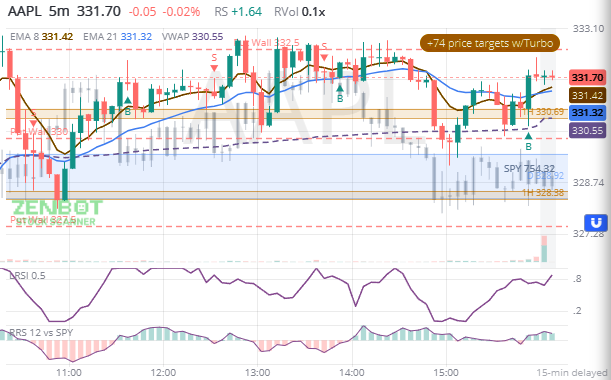
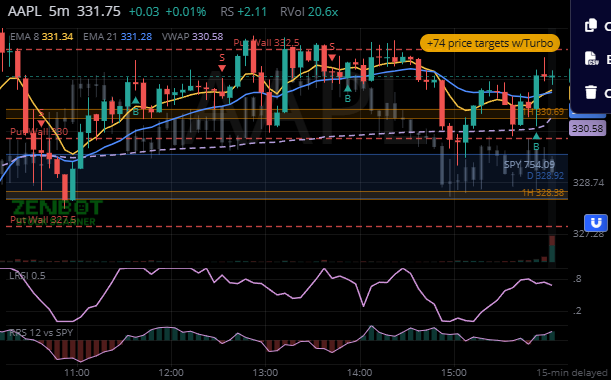
- Moving averages from any timeframe, and VWMA. A 1h 200 EMA on a 5m chart, if that is how you trade.
- One Layout menu holds the chart type, saved layouts and the chart grid. Layouts work on TradingView charts too.
- The right rail (Watchlist, Ask Zen, Charts, Scans) folds away with a chevron when you want the room.
Also new
- Ask Zen explains a chart, tells you why a stock is on a scan, reads the option walls, and remembers the conversation.
- Connect your AI: ZenBot’s scans, stock readings and charts inside Claude, ChatGPT, Cursor or VS Code. My Account, Connect AI.
- Install ZenBot as an app on your phone, Mac or Windows PC, with its own icon and window.
- “Did you know” tips, one every other day, each one something you can click.
- Every filter was checked, one by one, and the wording across the app now says “stock” when it means the company and “ticker” only when it means the symbol.
- Signed-in free accounts get unlimited charts; the daily limit is for anonymous viewing only.
- All-time high and low filters, true and split-adjusted, back to listing.
Fixes traders will notice
- The first bar after the open draws from the live price instead of waiting a minute for data.
- Long EMAs no longer jump where older bars join a chart.
- A regular-hours chart keeps showing the current price before the open.
- Changing charts no longer fades or spins; the new chart replaces the old the moment its data arrives.
- The Long and Short menus open on a tap on touch screens.
- An iPad in landscape gets a scrolling results grid beside a full chart instead of rows hidden under it.
- A regular-hours stock alert closes out at 16:00 instead of firing on an after-hours print.
- A once-only alert that fires now shows as fired right away, and an alert that failed to save no longer fires again every pass.
- The right-click menu never runs off the edge of the screen, and a long scan name in the sidebar no longer pushes its count onto a second line.
- Dark and light mode switch at the click, not after a round trip.
If something looks off, the Support menu has a feedback form that comes straight to me.