Your account
Open My Account → Manage Account to see or change your plan.
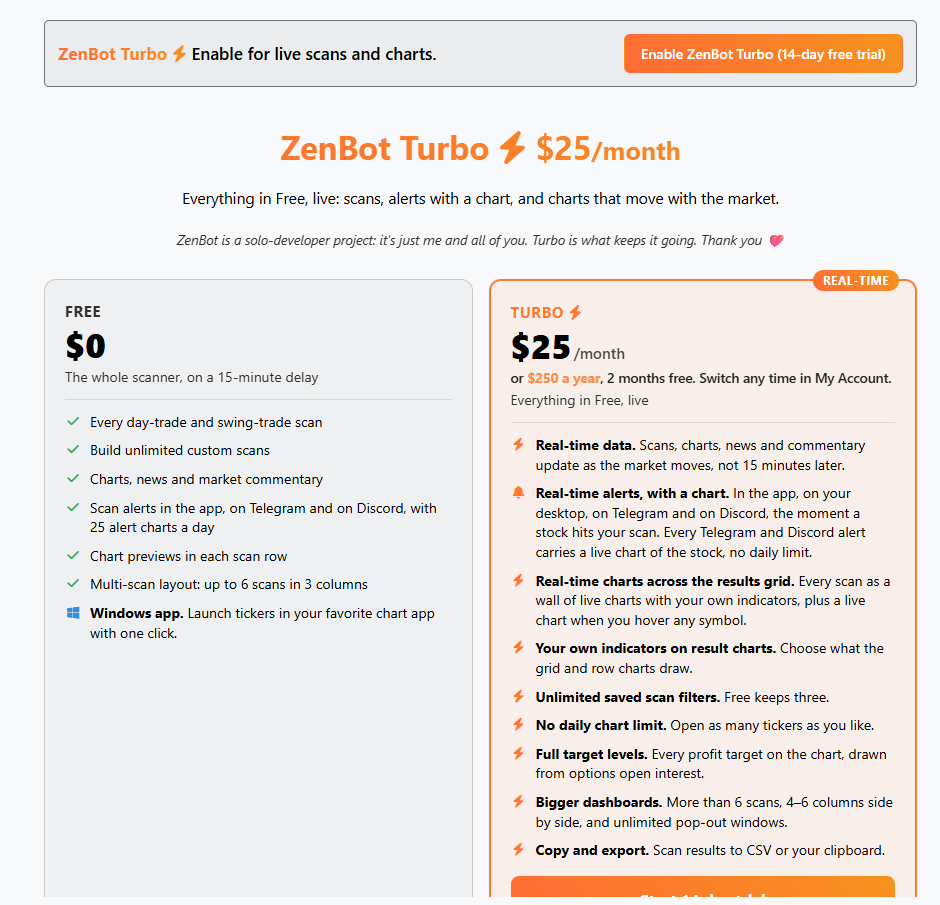

- Your subscription: your plan, when a trial ends or the next payment is due, the card on file, and your billing history. From here you can change your payment method or cancel.
- Help & Support: ways to reach me. See Help & Support.
- Free and Turbo, side by side: what each plan includes, with the button to start a trial or subscribe.
- Questions about Turbo: answers on price, the free trial, cancelling and payment.
If your trial is about to end or a payment fails, a card at the bottom of ZenBot brings you back to this page.
Signing in
Log In is at the top right, and an account is free. Once signed in, your flags, custom scans, saved filters, columns, layouts and alert settings follow you to your other devices.
Help & Support
The Support menu in the top bar has three entries.
| Entry | What it opens |
|---|---|
| Contact Support | My email address with a Copy button, the ZenBot Discord, and links to this guide and the Trading Strategies page. |
| Make a Suggestion | A short form. Tell me what would make ZenBot better for you. |
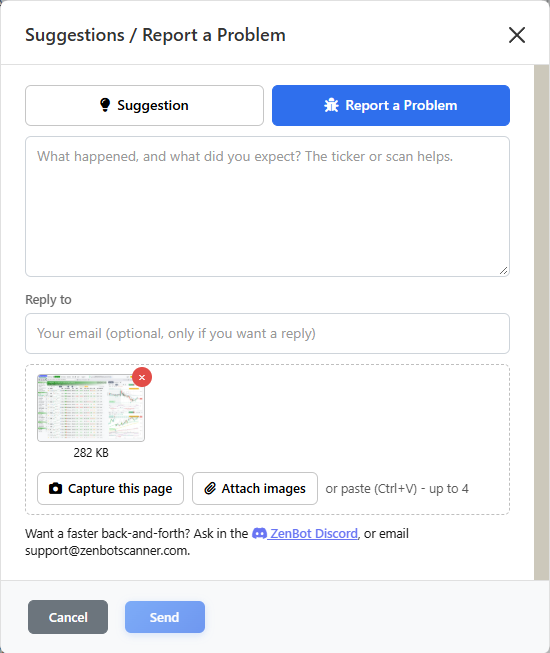
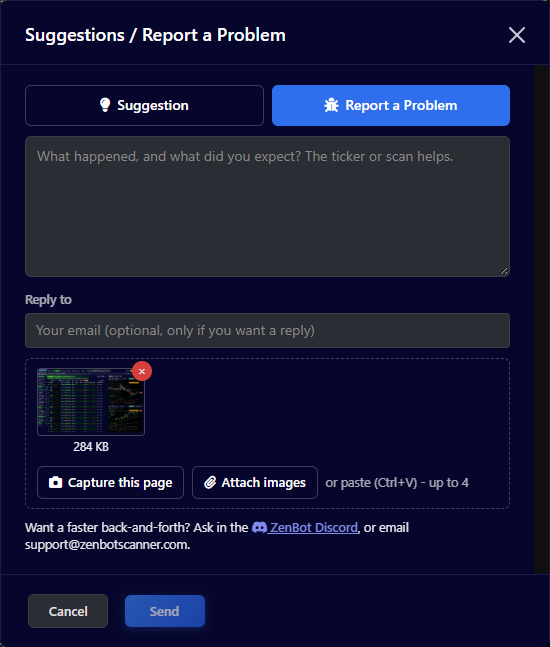
| Report a Problem | The same form, set to a problem report, with a picture of your screen already attached. |
Sending a report
- Say what happened and what you expected. The stock or scan helps.
- Check the Reply to address. It is filled in when you are signed in; change it if you want the answer somewhere else.
- Look at the attached picture. Remove it with the × if it shows something you would not want to send. Add more with Capture this page, Attach images, or by pasting a screenshot. Up to four.
- Click Send.
The automatic picture is a redraw of the page and can miss a TradingView chart. For a chart problem, paste your own screenshot.
Mobile & sync
On a phone ZenBot rearranges itself to fit. The results fill the screen, and tapping a chart opens it full screen.
- The menu button opens a side menu with the scan groups, Alerts, Learn, Support and your account.
- A one-tap Long / Short switch flips sides, and the scan button opens the scan list from the bottom of the screen.
- Charts respond to touch: drag to move through time.
- Right-click menus and typing over a chart are desktop features.
- For alerts on your phone, install ZenBot and switch on push, or connect Telegram or Discord. See Alerts on your phone.
Install ZenBot as an app
ZenBot runs as its own app, with its own icon and window and no browser bars, and that is what lets alerts reach a phone as push notifications.
- iPhone: open zenbotscanner.com in Safari, tap Share, then Add to Home Screen. The card above the scan results walks you through it.
- Android: tap Install on that card, or the Install app button in the gray bar.
- Mac: the Install app button in the gray bar. In Chrome or Edge it installs on the spot; in Safari it shows the steps (File, Add to Dock).
- Windows: the ZenBot Windows app from the Store.
Then open the app from your home screen or desktop and switch on Phone & browser push in Alert Settings.
What follows your account
| Saved to your account | Kept on the device |
|---|---|
| Flags and the Watchlist’s order, custom scans, saved filters, column choices, Multi-Scan layout, scan alerts and stock alerts with their channels, chart indicator choices, Fast Charts or TradingView, saved chart-window layouts, your plan | Whether the charts are shown or hidden, whether the right rail is folded and the Watchlist’s width, push on this device, which windows are popped out and their link colors, light or dark mode in a browser you are not signed in on |
Signed-in changes sync automatically. Anything you set up while signed out stays on that device.
Settings
Where to find each setting.
| To change | Go to |
|---|---|
| Light or dark mode | The half-circle icon at the top right, or Shift+F2 |
| Built-in charts on or off, Fast Charts or TradingView by default | Gear → Chart Settings |
| The timeframe of the pop-up chart when you hover a symbol | Gear → Chart Settings |
| Your own charting program (Windows app) | Gear → Chart Settings |
| How many scan panels sit side by side in Multi-Scan | Gear → Multi-Scan Layout |
| Columns in the results | The gear at the left of the column headings |
| Chart previews: Rows, Cards, Off, size, timeframe | The bar above the results |
| Indicators on the main charts | Indicators, above each Fast Chart |
| Which scans alert you | Alerts → Edit Alerts, or the bell on a scan |
| Where alerts arrive | Alerts → Alert Settings |
| Your plan and payment | My Account → Manage Account |
| Install the Windows app | Gear → Install Windows App |
| Install ZenBot on a phone or Mac | The Install app button in the gray bar, the install row in the gear menu, or the card above the results on a phone |
| Push notifications on this device | Alerts → Alert Settings → Phone & browser push |
| Stock alerts | The bell above a chart, the Watchlist’s Alerts tab, or right-click a stock |