Scan alerts
Put an alert on any scan, built-in or your own, and ZenBot tells you when a new stock joins it. That’s the whole idea: you don’t have to sit and watch the scan.
There are two kinds. A scan alert tells you when a new stock joins a scan; this section covers those. A stock alert watches one stock for one condition, a price crossing a level, ZenTrend turning, a rule of your own; those are further down. Both reach you the same ways: in the app, on your phone, on Telegram and on Discord.
Turn an alert on
- Open the scan and click the bell on its heading. It lights up while the alert is on; click it again to turn it off.
- Or right-click the scan in the list and choose Turn alerts on.
Signed in, turning an alert on doesn’t flood you with everything already on the scan: from then on, only stocks that newly join it alert you.
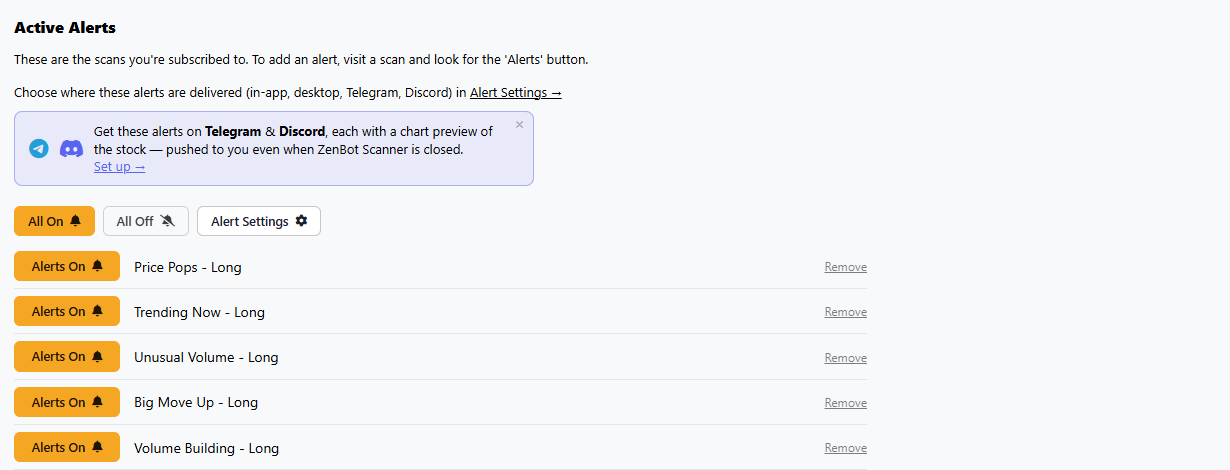
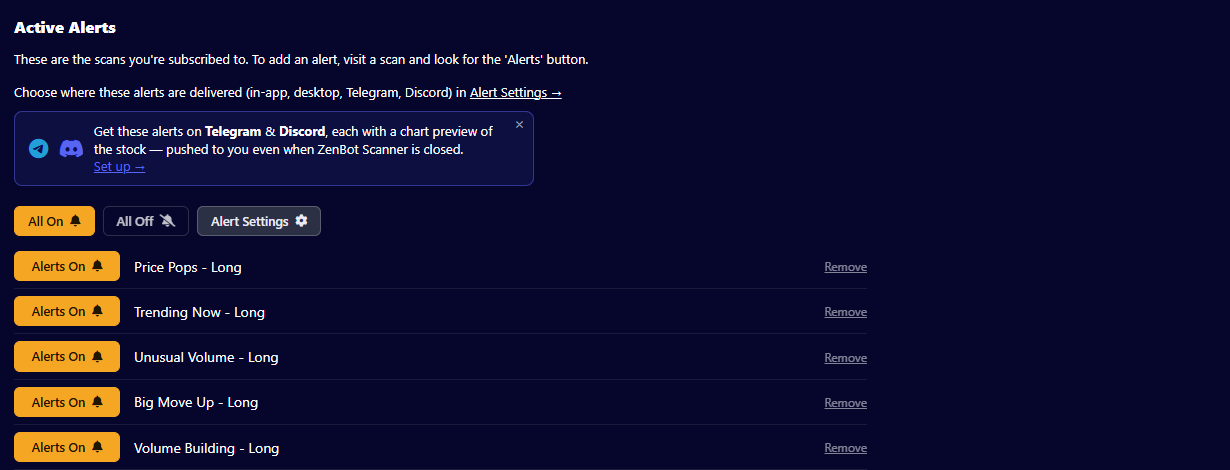
Alerts → Edit Alerts lists every scan you have an alert on as a card with its own switch, plus All On and All Off. The bin on a card takes the scan off the list. Your stock alerts sit below the scan cards, each with how long it has left.
Pop-ups in the app
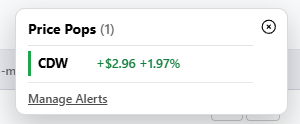
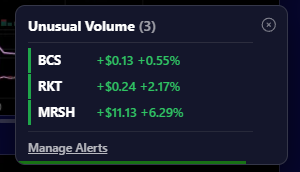
When an alert fires, a pop-up appears at the top right: one card per scan, with the scan’s name, how many new stocks, and each stock with its move today in dollars and percent. Hover a stock for a quick chart; click it to load it. Click the scan’s name to open the scan. Manage Alerts at the bottom takes you to Edit Alerts.
A pop-up stays about 15 seconds (hover over it to keep it), and the × closes it. A new batch replaces the last one.
Desktop notifications
So you hear about it when ZenBot is in a background tab or behind other windows, it also sends a desktop notification through your browser: Zen Alerts, with a line for each scan and its new stocks, like “Trending Now: AAPL, MSFT”. The browser asks for permission the first time you switch an alert on. Say yes, or turn it on later in your browser’s site settings.
Recent Alerts
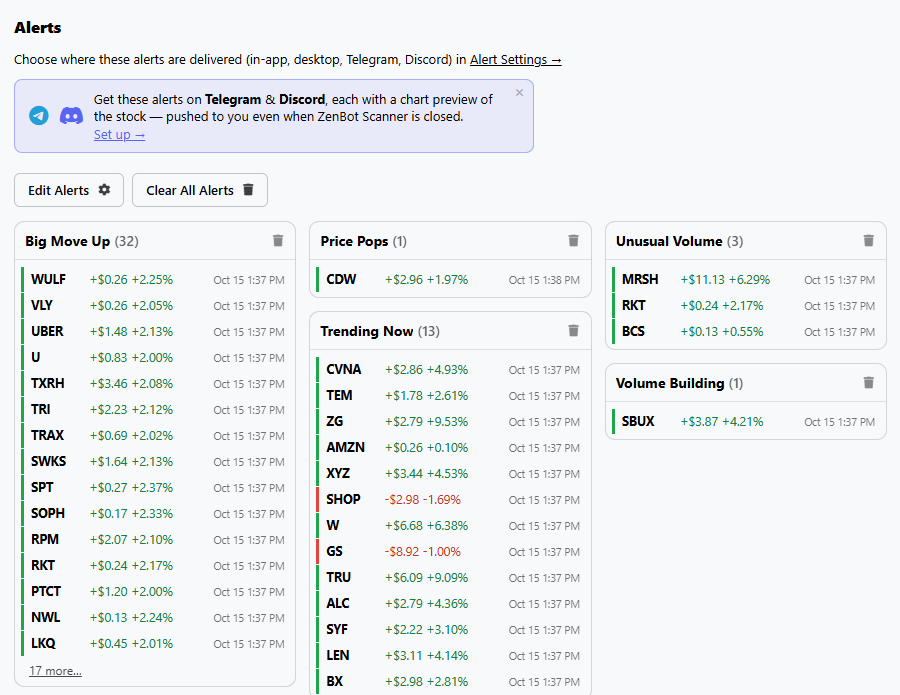
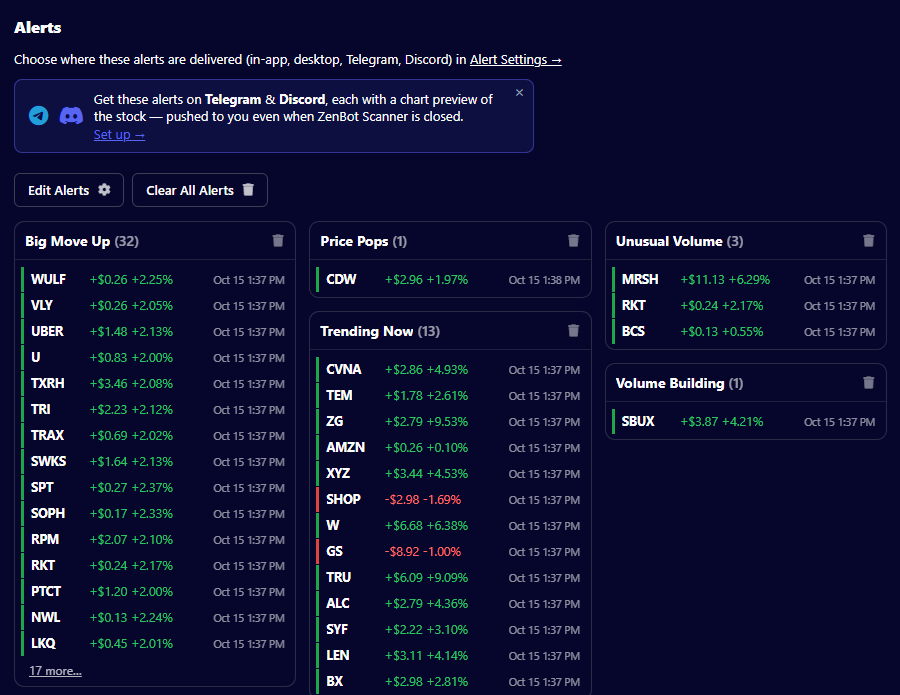
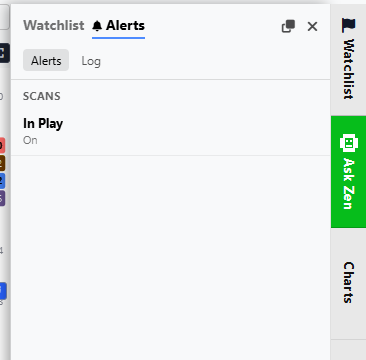
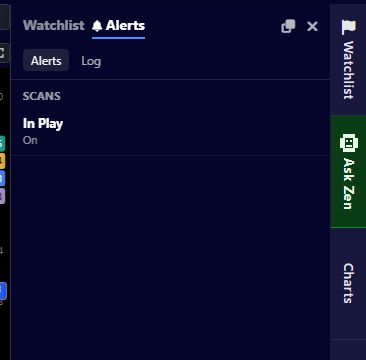
The Watchlist’s Alerts tab shows your scan alerts and stock alerts beside the charts, with a Log of what fired. Alerts → Recent Alerts shows everything that fired in the last 48 hours, one card per scan, each stock with its move and the time it joined. A red dot on Alerts in the top bar means there’s something in it. The bin on a card clears that scan; Clear All Alerts clears the lot. Clearing doesn’t turn any alerts off.
Signed in or not
- Signed in: ZenBot watches your scans on its servers, so alerts fire even with the app closed. They’re waiting in Recent Alerts when you come back, and they go to your phone, Telegram and Discord.
- Signed out: alerts only work while ZenBot is open in your browser.
Timing
- Turbo: alerts fire in real time.
- Free: alerts run on the 15-minute delayed data, the same as the scans.
- A stock that drops off a scan and comes back within 30 minutes doesn’t alert you again.
Keep the volume down
If every scan is ringing, the alerts stop being useful.
- Put alerts on two or three scans, not twenty.
- Prefer a tight custom scan to a broad built-in one.
- Use All Off in Edit Alerts when you step away for the day.
Stock alerts
A scan alert tells you when a stock joins a scan. A stock alert watches one stock for one condition: a price crossing a level, ZenTrend turning, a Laguerre RSI reading, or any condition you build from the scanner’s filters. Scan alerts, which tell you when a stock joins a scan, are on the Alerts page. Every account has stock alerts: 5 active ones on a free account, 100 with Turbo.
One stock, one alert
Every alert is for one stock. Type several stocks when you create one and you get one alert each, so each can be paused, extended or deleted on its own.
Creating one
- Right-click a stock on a scan and choose New alert for …, or press the bell in the Alerts tab of the Watchlist.
- Press Alerts, the bell above a chart. On a stock that has alerts it shows their count and opens them; on any other stock it starts a new alert for that stock.
- Copy from at the top of the dialog lists your recent alerts: pick one and its condition and settings fill the form for the stock you typed.
From the chart
The quickest price alert starts on the chart itself:
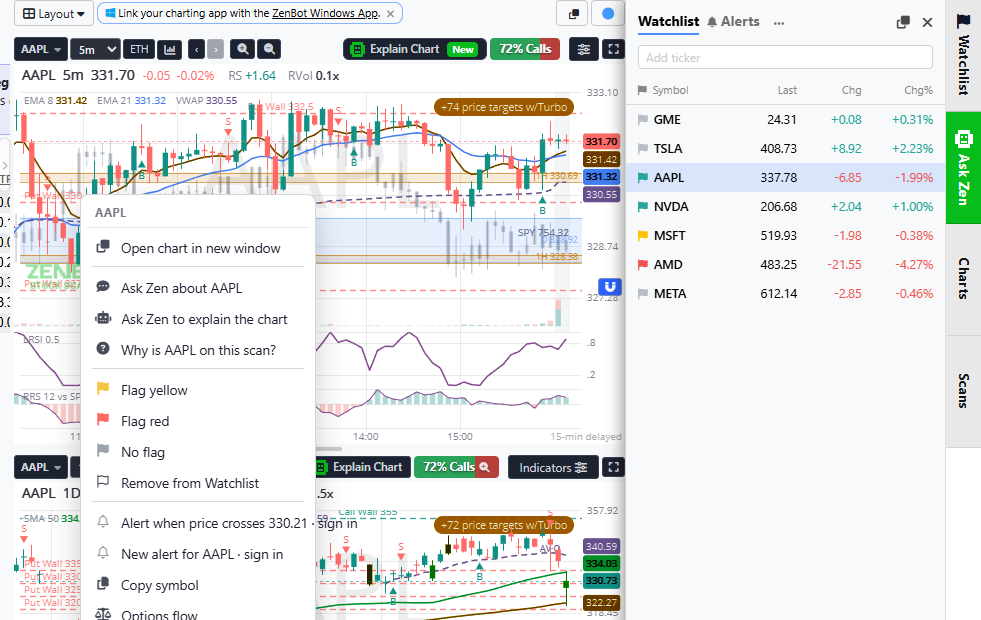
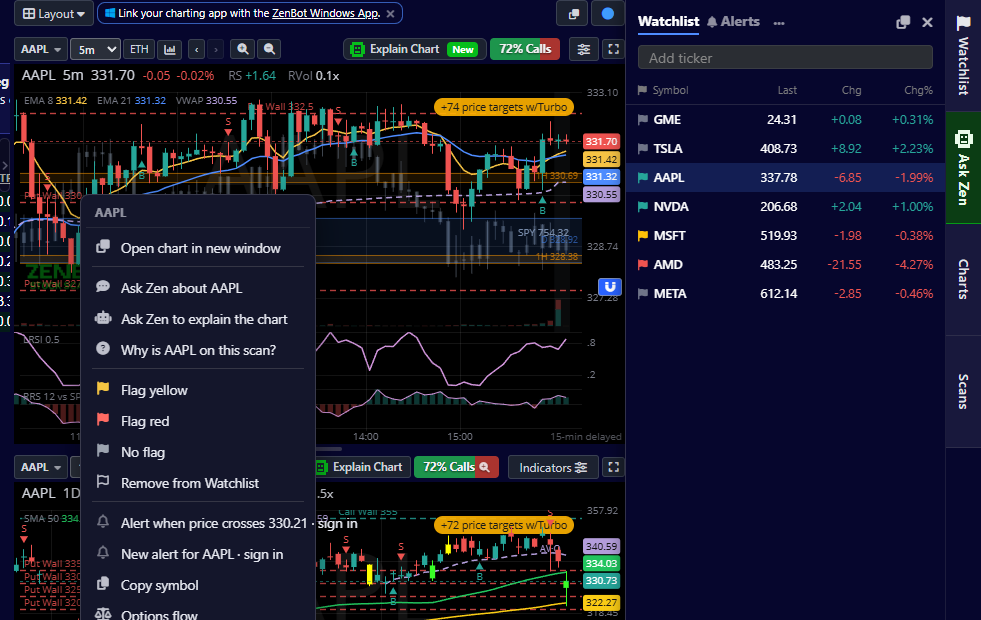
- Put the pointer on the price you care about. Resting it on a line the chart draws, a price target, an anchored VWAP or the edge of a zone, picks that exact level; anywhere else picks the price under the pointer.
- Right-click. The menu shows Alert when price crosses … with that price in it, and New alert for … for any other condition.
- Choose the price row. The alert dialog opens with the level filled in and crosses above or crosses below already chosen from where the stock trades now. Check the trigger, hours and expiry, then Create alert.
Signed out, the rows and the bell still work: the alert dialog opens under a card that asks you to create a free account, and the form shows through it so you can see what you would get.
On the chart
Every price alert draws on its stock’s chart: a dashed line at the level, with a tag such as Alert above 339.01 at the left edge. The line is amber while the alert can fire and gray once it has fired, is paused or has expired. The chart keeps a nearby alert level in view when it fits the scale.
- Drag the line to move the alert to a new price. It saves when you let go, and a name ZenBot suggested follows the price; a name you typed stays.
- Click the tag to open that alert: pause it, edit it or remove it.
- Right-click on the line and the price row in the menu picks that exact level, the way it does on a price target.
The settings
| Setting | What it does |
|---|---|
| Trigger | Once only, which switches the alert off after it fires, or keep alerting with a minimum gap between fires. One fire per bar at most. |
| Check | Instant, on every price, or on bar close for a timeframe. |
| Hours | Regular hours only, or extended hours too. |
| Expires | A date. Free accounts can pick up to 90 days out; Turbo any date, or Never. |
Limits: 5 active stock alerts on a free account, 100 with Turbo. A free account sees its count on a line at the top of the dialog, with a link to Turbo. Free alerts run on 15-minute delayed data, so a price alert arrives about that late; Turbo alerts run on real-time data.
Managing them
The Alerts tab in the Watchlist panel lists your scan alerts and, under Stocks, every stock alert with its state: waiting, fired, paused or expired. The three dots on the Stocks heading offer Delete all inactive, the ones that fired and stopped, were paused or expired, and Delete all, each behind a confirmation. The Log tab keeps what already fired.
Click the bell on a stock that has alerts, or Alerts for … on its right-click menu, for that stock’s alerts: pause or resume each, edit it, remove it, or start a new one.
On the Alerts → Edit Alerts page every stock alert shows how long it has left. Extend pushes the date out to 90 days from today without re-arming it; an expired one offers Renew, which starts it over.
Alerts on your phone
Watch: mobile alerts with charts (16:14)
Signed in, your alerts can reach your phone three ways: as push notifications from the ZenBot app on your phone, as Telegram messages, or as Discord messages. Push is the newest and the simplest.
The ZenBot app on your phone
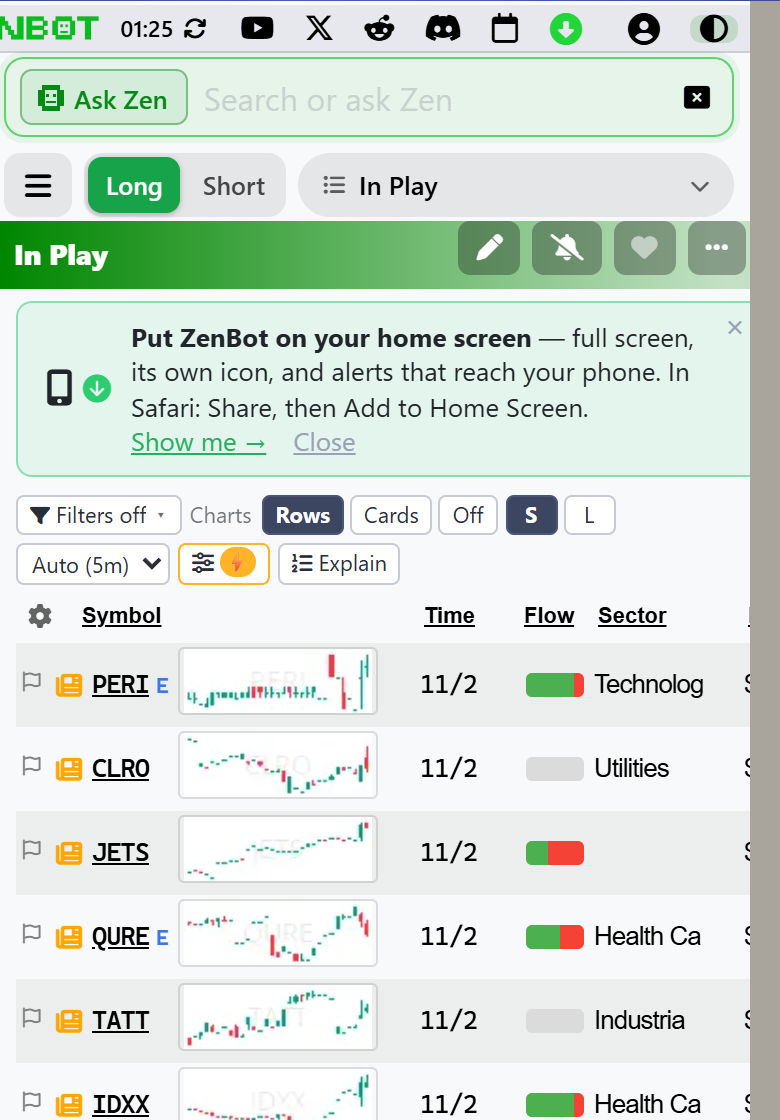
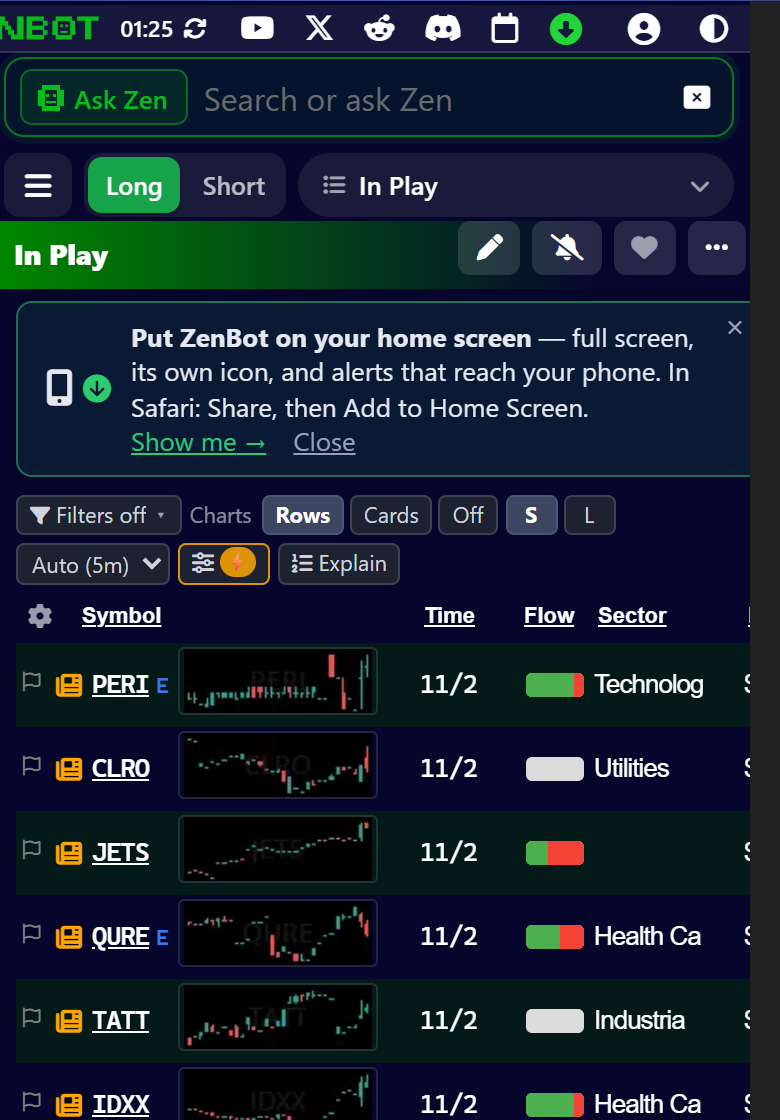
ZenBot installs on your phone as its own app: an icon on the home screen, full screen, no browser bars. It is the same ZenBot, with nothing to download from a store, and it is what lets alerts reach the phone when it is locked and the app is closed.
- iPhone: open zenbotscanner.com in Safari, tap Share, then Add to Home Screen. A card above the scan results walks you through it the first time. On an iPhone, push only works from the installed app, so this step is not optional there.
- Android: tap Install on that card, or the Install app button in the gray bar. One tap.
- Mac and Windows: the same switch works in a desktop browser, with or without installing. The Install app button in the gray bar installs ZenBot as a desktop app on a Mac; on Windows there is the ZenBot Windows app.
Push notifications
- Open ZenBot from its icon on the home screen (on a phone) or in your browser (on a desktop).
- Go to Alerts → Alert Settings and switch on Phone & browser push. Allow notifications when the device asks.
- Press Send test beside it. The test should land on the device within a few seconds.
From then on every scan alert and stock alert that fires arrives as a notification on that device, with the stock and the move. Tap it and ZenBot opens on the alert. Push is per device: switch it on on each phone or computer you want it on, and switch it off on one without touching the others. It works for free accounts and Turbo alike, on each plan’s data.
If a test never arrives on an iPhone, check that you opened ZenBot from the home-screen icon rather than a Safari tab, and that notifications for ZenBot are allowed in the iPhone’s Settings.
Telegram and Discord
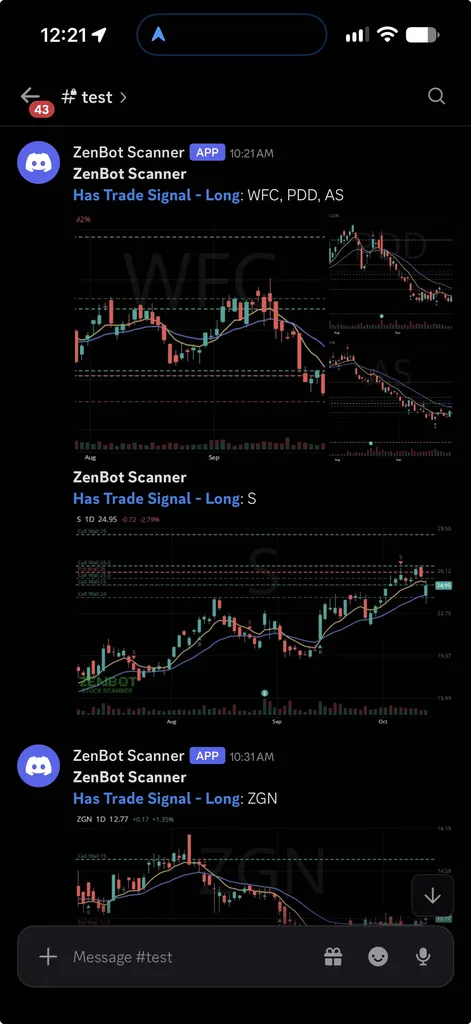
Connect Telegram or Discord in Alert Settings and your alerts come as messages too, with a chart of each stock if you want one. These work without installing anything, and they are the way to share alerts with a group.
Alerts with a chart
Telegram and Discord can send the chart with the alert, plus a link back to the scan, so you see the setup before you even open the app. Switch on Charts in alerts in Alert Settings to get a chart for each new stock, up to ten per alert. Pick a timeframe from 1 min to Weekly in the box beside it; the default is 5 min.
- Turbo: live charts with every alert, no daily limit.
- Free: 25 alert charts a day, on the delayed data.
Alert Settings
Alerts → Alert Settings is where you choose how alerts reach you.
| Channel | What you get | Setup |
|---|---|---|
| In-app pop-ups | The pop-up at the top right. | On by default. |
| Desktop notifications | A notification from your browser, even when ZenBot is in the background. | On by default. Allow notifications when your browser asks. |
| Phone & browser push | A notification on this device with the app closed: a phone with ZenBot installed, or a desktop browser. | Switch it on here and allow notifications. On an iPhone, open ZenBot from the home screen first. |
| Telegram | A message on your phone. | Sign in, click Connect, and tap Start in Telegram. |
| Discord | A message in a channel of yours. | Paste the channel’s webhook address and Save. |
In Telegram and Discord messages, the scan’s name is a link. Tap it to open that scan in ZenBot. Use Send test beside a channel, or Fire Test Alert at the bottom, to check it works.
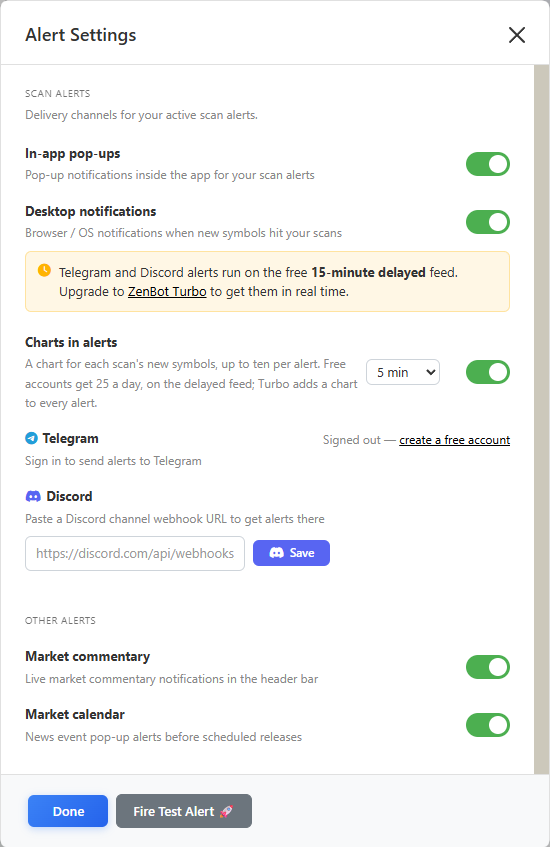
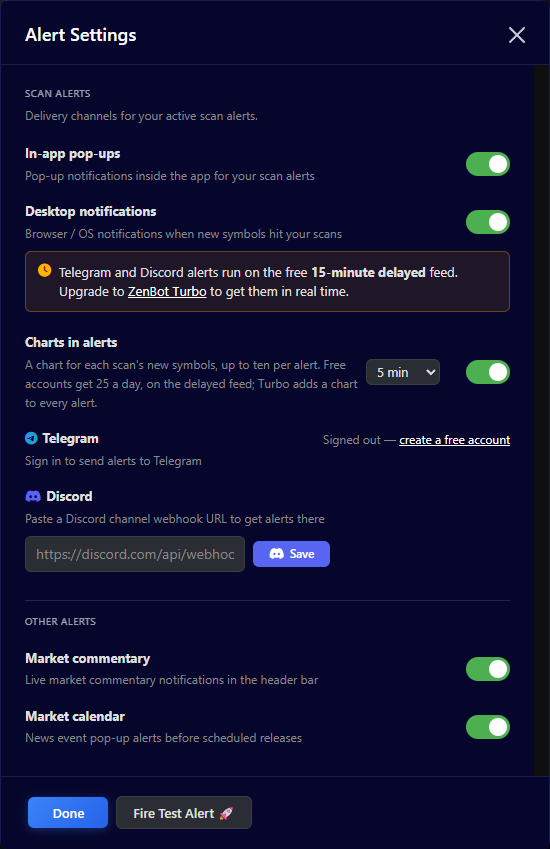
Alert Settings also has switches for Market commentary (updates in the top bar) and Market calendar (a pop-up before a scheduled release).