Zen is the assistant built into the scanner. Ask it how something in ZenBot works, what a stock is doing, or what the market looks like, and it answers from the scanner’s own numbers. Describe a scan in words and it builds it. Ask it to read a chart and it tells you what it sees. It describes; it never tells you what to trade.
Where to find it
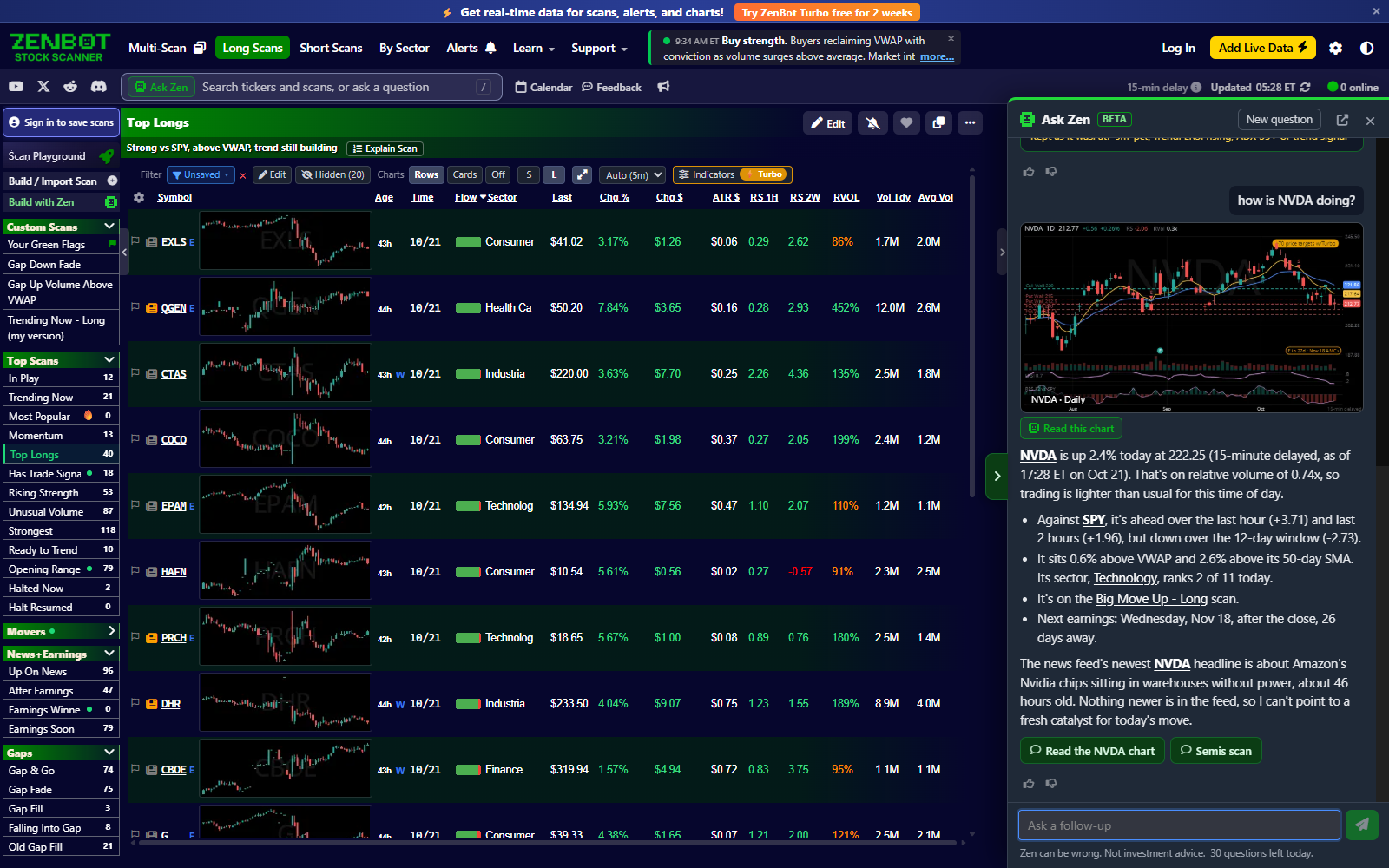
- The search box. The green Ask Zen tag sits in the box in the gray bar. Click it to open Zen, or type a question in the box and pick the Ask Zen row. Press / from anywhere to get to the box.
- The tab on the right edge. Zen’s panel opens from the right side of the screen and closes with the ×. The conversation stays until you press New question.
- Build with Zen in the left menu, above your custom scans, opens Zen ready for a scan described in words. The same box sits at the top of the filter editor.
- Read chart on a Fast Chart’s bar, and the Zen face on a TradingView chart, send that chart to Zen.
- Right-click a ticker for Ask Zen about, Ask Zen to read the chart and Why is it on this scan?, or right-click a scan for Ask Zen about this scan. See Right-click menus.
- In a chart window the Ask Zen button on the window’s bar opens Zen over the charts. Every chart there has Read chart and the right-click items; a read is answered in that window, and anything about scans (save, edit, open) is handed to the main window.
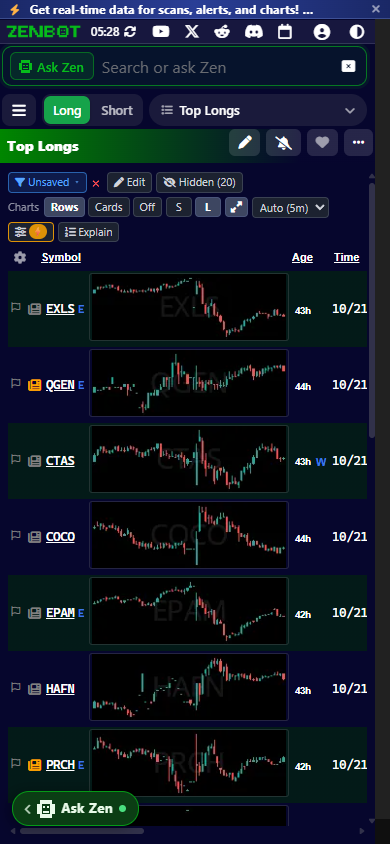
- On a phone the search box with the Ask Zen tag runs across the top of the screen.
The arrow at the top of the panel pops Zen out into its own window, so it can sit beside the scanner on another screen.
What you can ask
| Ask | You get |
|---|---|
| How something works (how do I get alerts on my phone?, what is RVOL?) | An answer from this guide, with a Read button to the page and a button that opens the screen it is talking about. |
| A stock (how is NVDA doing?, what’s up with Silgan?) | Its price and move, relative volume, relative strength, the scans it is on, earnings and the latest headlines. Company names work as well as tickers. Zen shows the stock’s daily chart with the answer. |
| Two stocks (AMD vs NVDA) | Both sets of numbers side by side, and both charts. |
| The market (how’s the market today?, which sectors are leading?) | SPY and QQQ, the sectors ranked, breadth, the day’s movers and the busiest scans, with the SPY chart. |
| The calendar (anything big this week?, when is CPI?) | The economic events and earnings coming up. |
| News (any news on GME?) | The headlines the scanner has for it. |
| Earnings dates (when does AAPL report?) | The next report from the earnings calendar, with the weekday, before open or after close, and how many days away. The same date the chart’s amber E shows. |
| Your account (when does my trial end?, why is my data delayed?, was I charged?) | Your plan and status, trial end, next charge, cancel date, recent invoices, what’s set up and the questions you have left, from the same place the Account screen reads. Changes (cancel, pause, card, annual) are made on the Account screen, and Zen offers the button; refunds and anything it can’t see go to Contact Support. |
| Trading ideas (how do I trade a gap and go?) | How the setup works and which scans find it, from the Trading Strategies pages. |
Under an answer, Zen offers a few buttons for where to go next. Tickers and scan names in an answer are links: click one to load it.
Under every answer there is a thumbs up and a thumbs down. Use them; they are how Zen gets better.
Build a scan in words
Click Build with Zen and describe the stocks you want: large caps pulling back to VWAP on heavy volume, small caps gapping up on news above $5, stocks in a strong sector resting on the daily 21 EMA. Zen turns it into a scan and runs it right away.
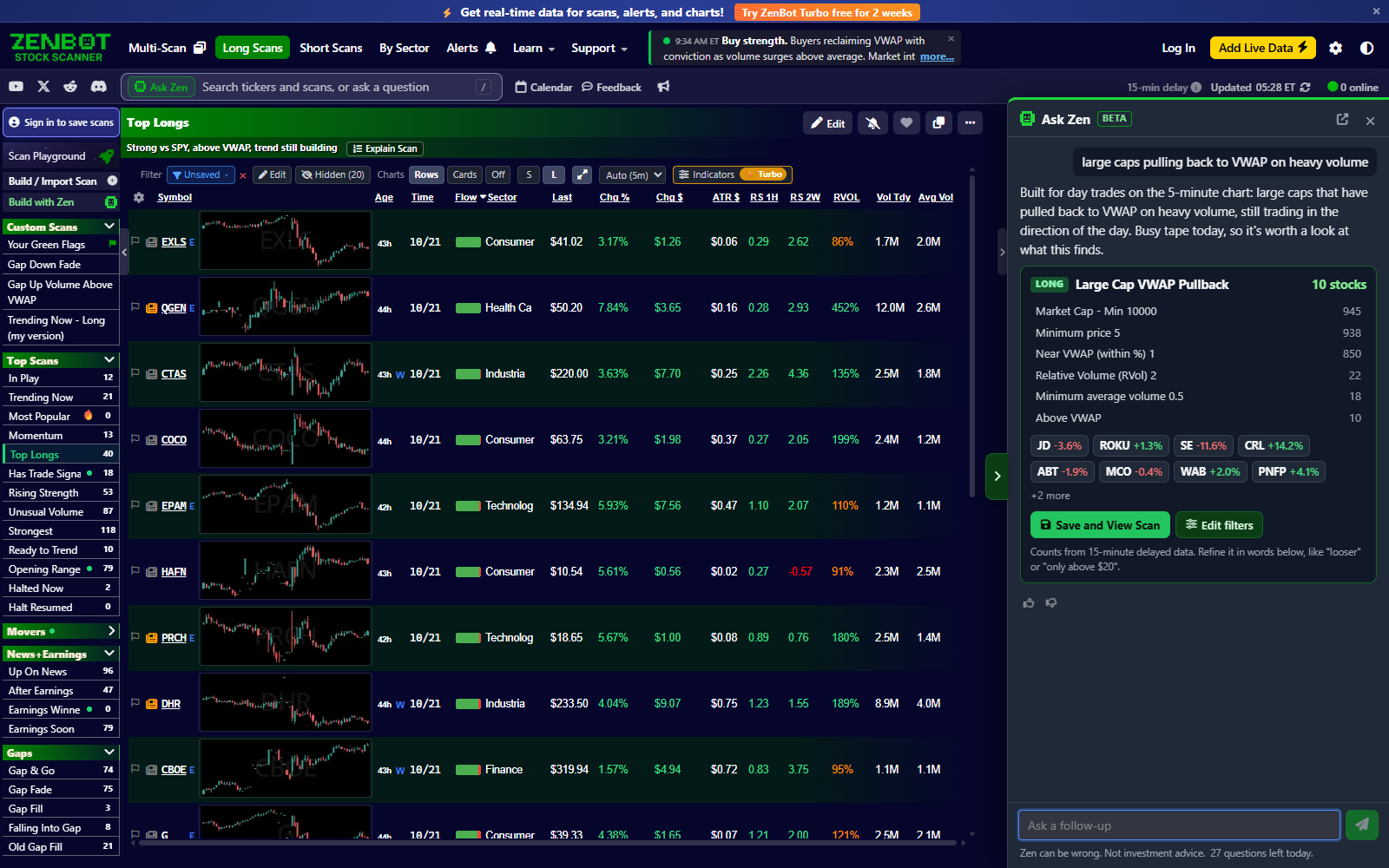
The answer shows the scan’s rules with how many stocks pass each one, the first matches, and anything in your description that it could not turn into a rule. Press Save and View Scan and it goes into your Custom Scans and opens, or keep refining in words: only above $20, add a top-3 sector filter, looser, same but shorts. Each reply builds on the last.
A few things Zen does on its own:
- Timeframe. It works out whether you mean a day trade (today, VWAP, opening range, gap and go) or a swing trade (earnings, pullbacks to the 50-day, 52-week highs) and picks intraday or daily conditions to match. If it cannot tell, it asks, with a button for each answer.
- Multi-timeframe rules. When they make sense it uses them: a daily trend with a 5-minute entry, or the same condition on two charts.
- Groups. Add a group: up 3% or gapping up makes an “any of” group in the Filter Builder; a group for 2x RVOL near the day high makes one where every condition must hold.
- Names. A scan saved with the default name gets a short, friendly one.
Zen only uses the filters the scanner has (see Every filter, explained), so a scan it builds is a normal custom scan: edit it in the filter dialog, share it, or put an alert on it.
Zen in the filter editor
The Build with Zen box at the top of the filter dialog works on the scan that is open. Ask about it (why does this find so few stocks?) and Zen answers from the scan’s rules and counts, the same numbers the Scan Explainer shows. Ask for a change (only tech stocks, make the RVOL 4x, add a group for a flat day) and Zen shows the changed scan with a count before and after and an Apply to scan button. Undo puts it back. Nothing is saved until you press Save in the editor.
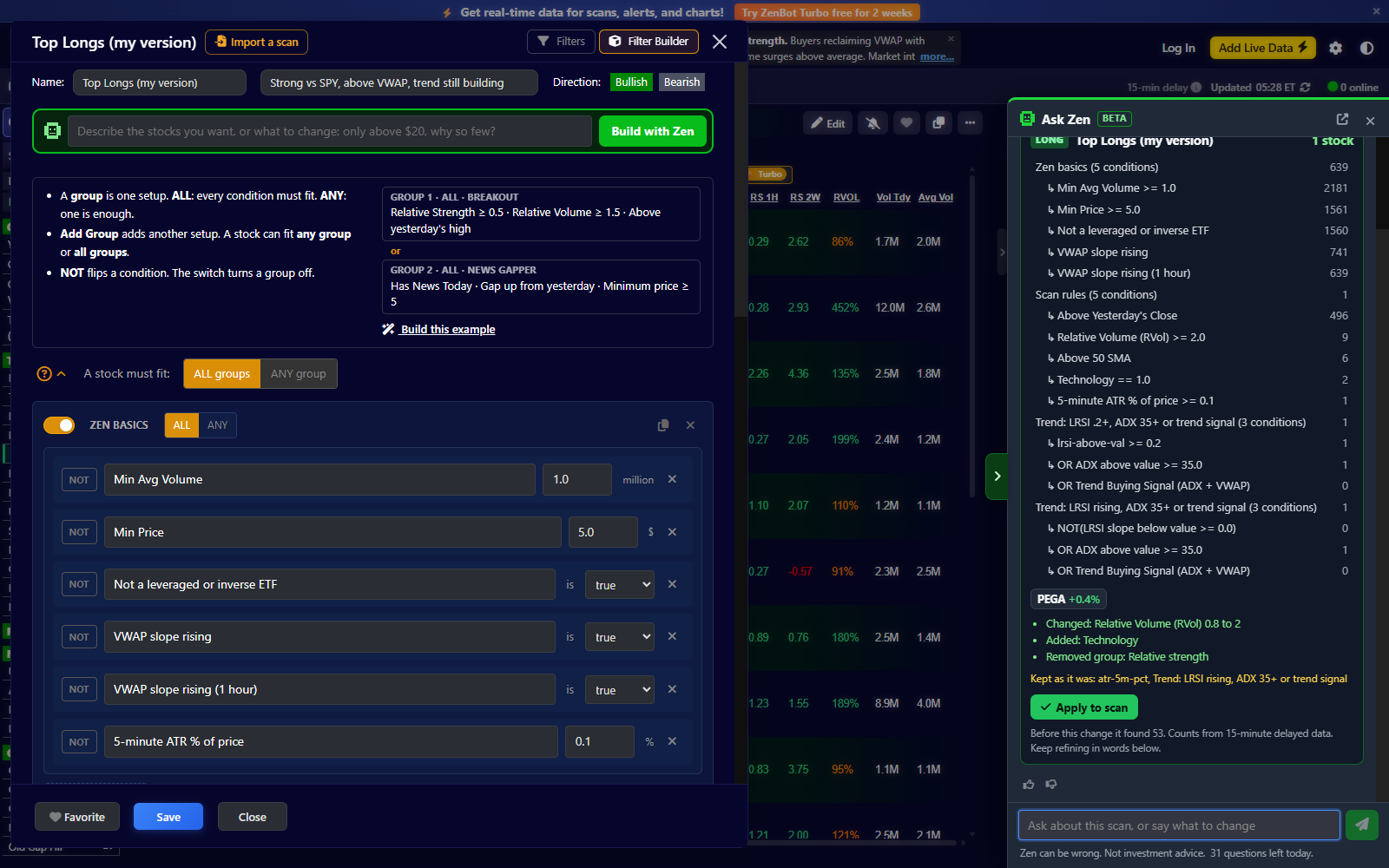
When the editor holds your view filter rather than a scan (Filter Settings from the Filter chip), Zen knows: it calls it your filter, and its counts are within the scan you are looking at, not the whole market.
Read a chart
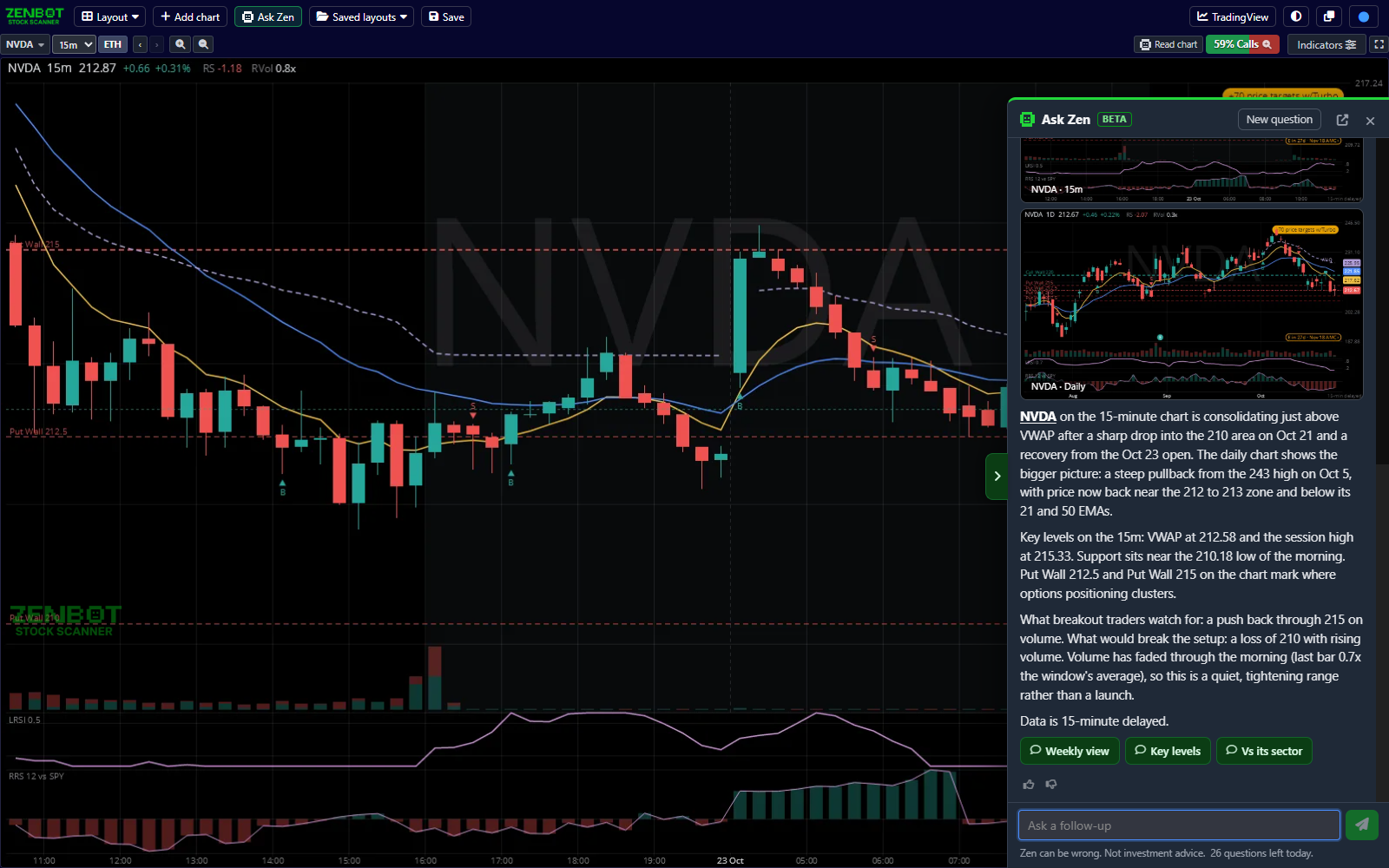
Press Read chart on a Fast Chart, or ask read the AAPL chart. Zen looks at the chart you see on that timeframe and at one bigger timeframe for context, and describes the trend, the key levels and the volume, with the numbers behind them. Both charts are in the answer, and three buttons follow: the other timeframe, Key levels and Vs its sector.
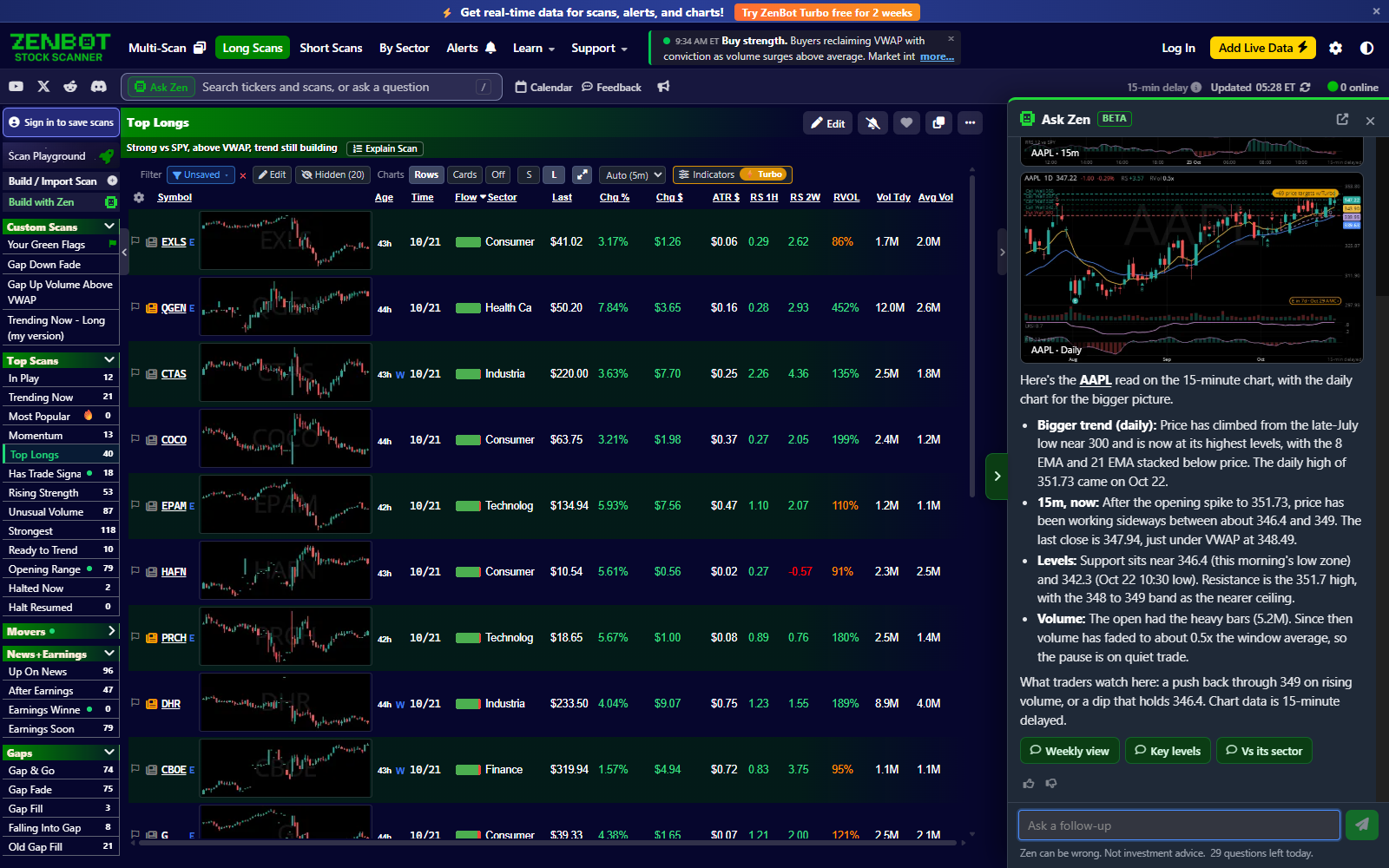
When Zen shows a chart it has not read yet, say in an answer about a stock, a Read this chart button sits under it.
Why is this stock on my scan?
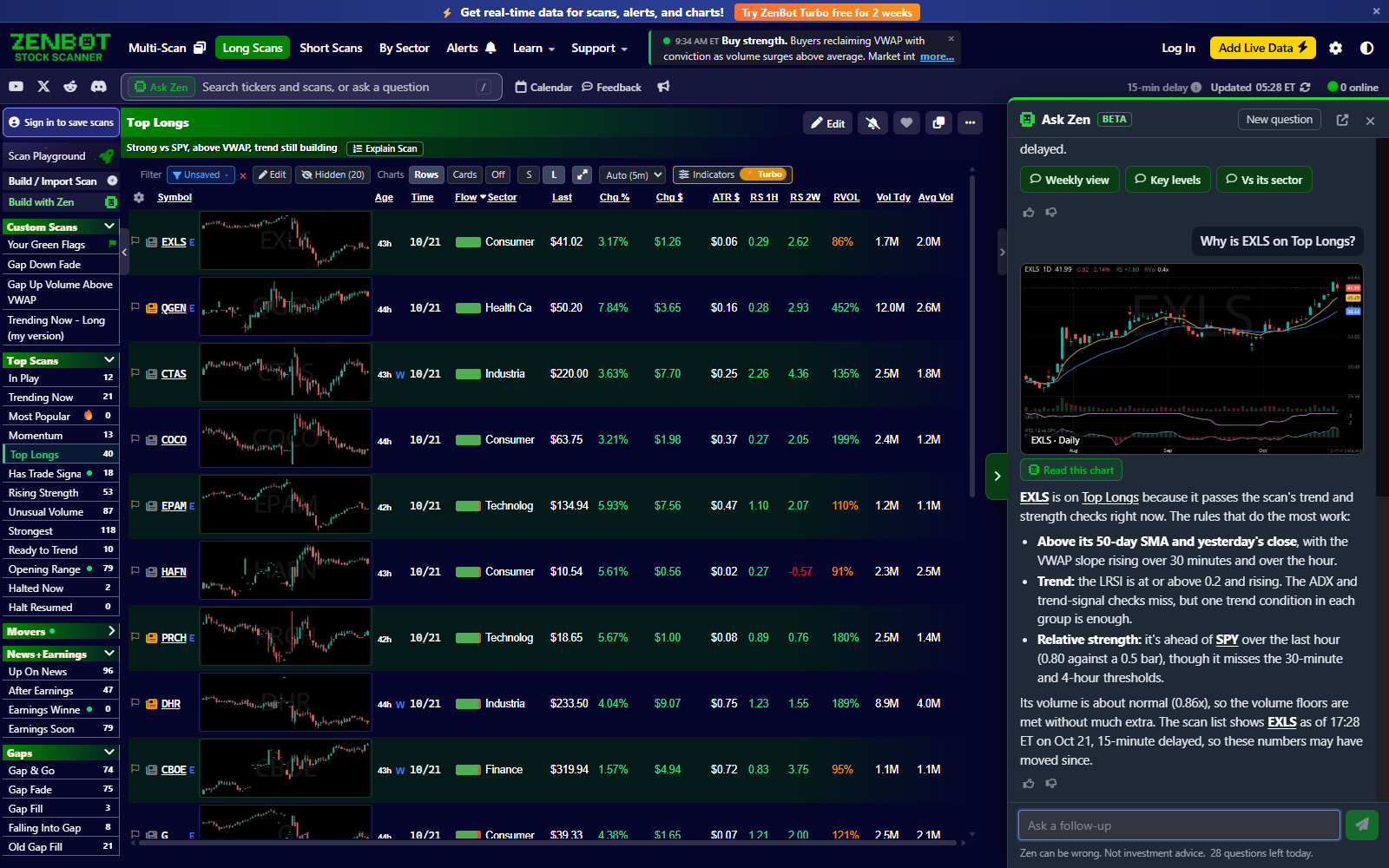
Right-click a ticker in the results and choose Why is it on this scan?. Zen checks each of the scan’s rules against that stock and tells you which ones put it on the list, with the stock’s numbers. It works on the built-in scans and your own.
Questions per day
| Who | Questions a day | Data |
|---|---|---|
| Signed out | 10 | 15-minute delayed |
| Free account | 40 | 15-minute delayed |
| Turbo | 100 | Live |
A typed question, a follow-up you type, and a chart read each count as one question. The reply buttons Zen offers under an answer are free, including the three after a chart read. Opening the panel, applying or saving a scan, and the thumbs are free too. The count under the box shows what is left; it resets each day.
Good to know
- Zen describes what it sees and never gives advice. It will not tell you to buy or sell, and it says so if you ask.
- Zen can be wrong. Its numbers come from the scanner, but the words are its own: check the chart before you act.
- Zen knows ZenBot, stocks and the market. Ask it about something else and it will say that is not what it is for.
- Your questions are kept for 90 days so I can see what people ask and make Zen better. They are never shared.