Launch your charting app
The ZenBot Windows app is the whole scanner as a desktop program: the same scans, filters, charts, alerts and Ask Zen as the web site, signed in to the same account, with live charts on Turbo. It adds one thing the web site cannot do: send each stock you click to another charting program. That works with programs that accept a typed symbol, including TradingView, thinkorswim, TC2000 and Interactive Brokers.
How it works
Show ZenBot where to click in your charting program. When you pick a stock, it clicks there and types the symbol.
Setup
- Install the Windows app from the Microsoft Store (it’s free), or from inside ZenBot: gear → Install Windows App.
- In the Windows app, open gear → Chart Settings and switch on Use your charting app.
- Click Configure Charting App and follow the four steps: open your charting program, set the spot for the automatic click, test it, and adjust the pauses if the symbol arrives too early.
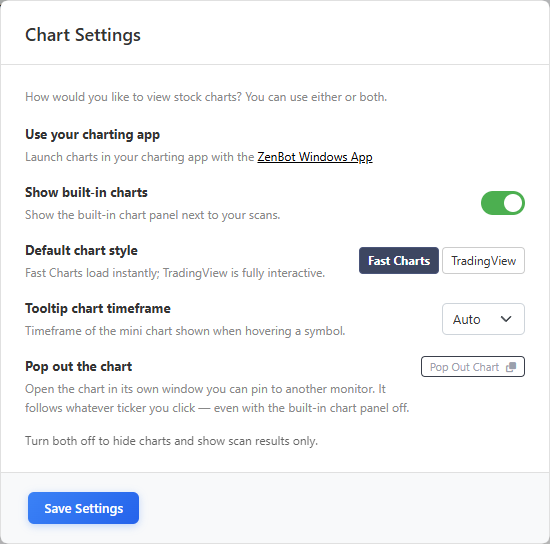
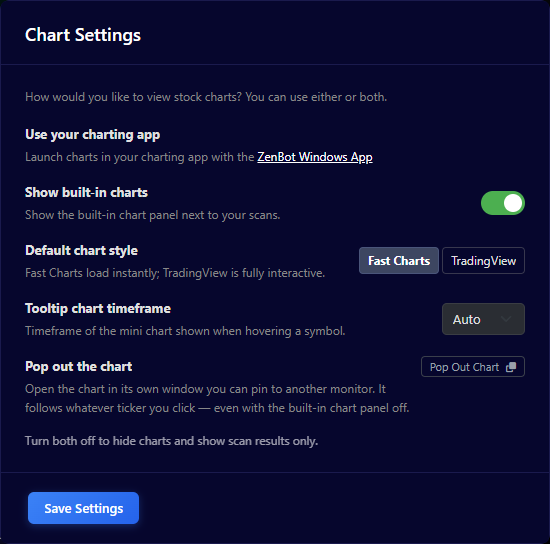
You can use your own program alone, or alongside ZenBot’s built-in charts.
If the symbol doesn’t load
In step four of Configure Charting App, try longer pauses. For Interactive Brokers, switch on “Press Shift when pressing enter”. For thinkorswim, you may need to run ZenBot as a Windows administrator.