I got tired of hunting through my own app, so I put stocks, scans, filters and settings in one box. Press / anywhere (or Ctrl+K) and start typing. The box is in the gray bar.
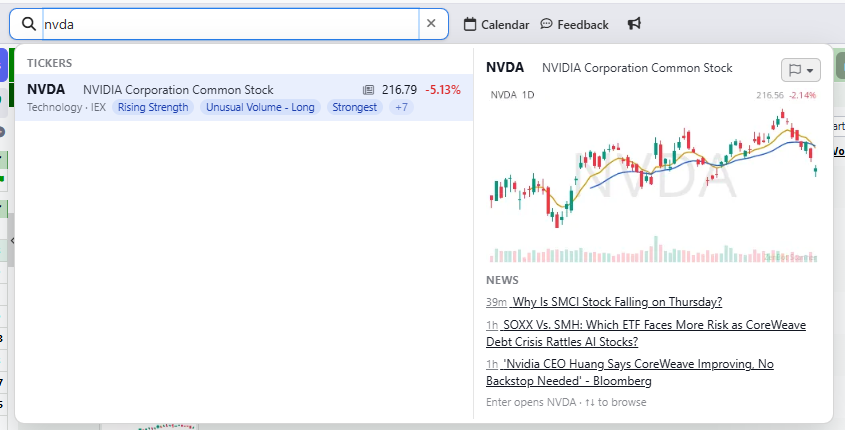
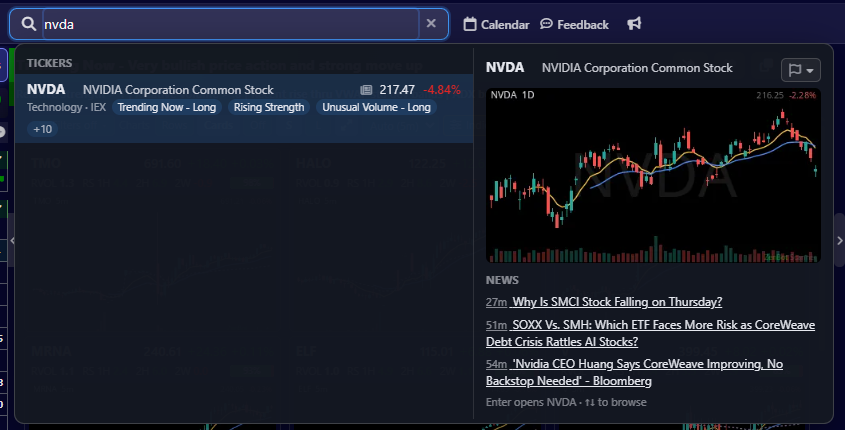
| You type | You get |
|---|---|
A ticker or company name (nvda, nvidia) | Its price, today’s move, current scans and a mark if it has news today. The highlighted stock’s chart and latest headlines sit beside the results. Use ↑ ↓ to browse; Enter loads it. |
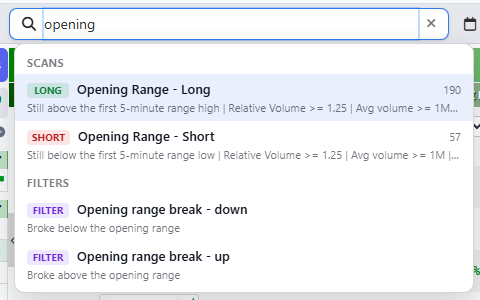
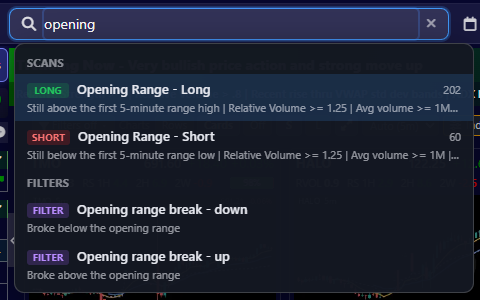
A scan name or shorthand (orb, gap, pullback) | Built-in scans and your own. orb finds Opening Range, long and short. |
A filter (rvol, market cap, 50 sma) | The filter. Pick it and the filter dialog opens on that row, ready to switch on. Your saved filters show up too. |
A setting or a task (dark, alerts, calendar, build) | The setting or screen. dark switches to dark mode. |
A sector (tech, semis) | The sector scan. semis opens Technology. |
| Anything at all | An Ask Zen row with what you typed, last in the list (first when it reads as a question, or nothing else matches). A stock also gets How is NVDA doing? and Read the NVDA chart. See Ask Zen. |
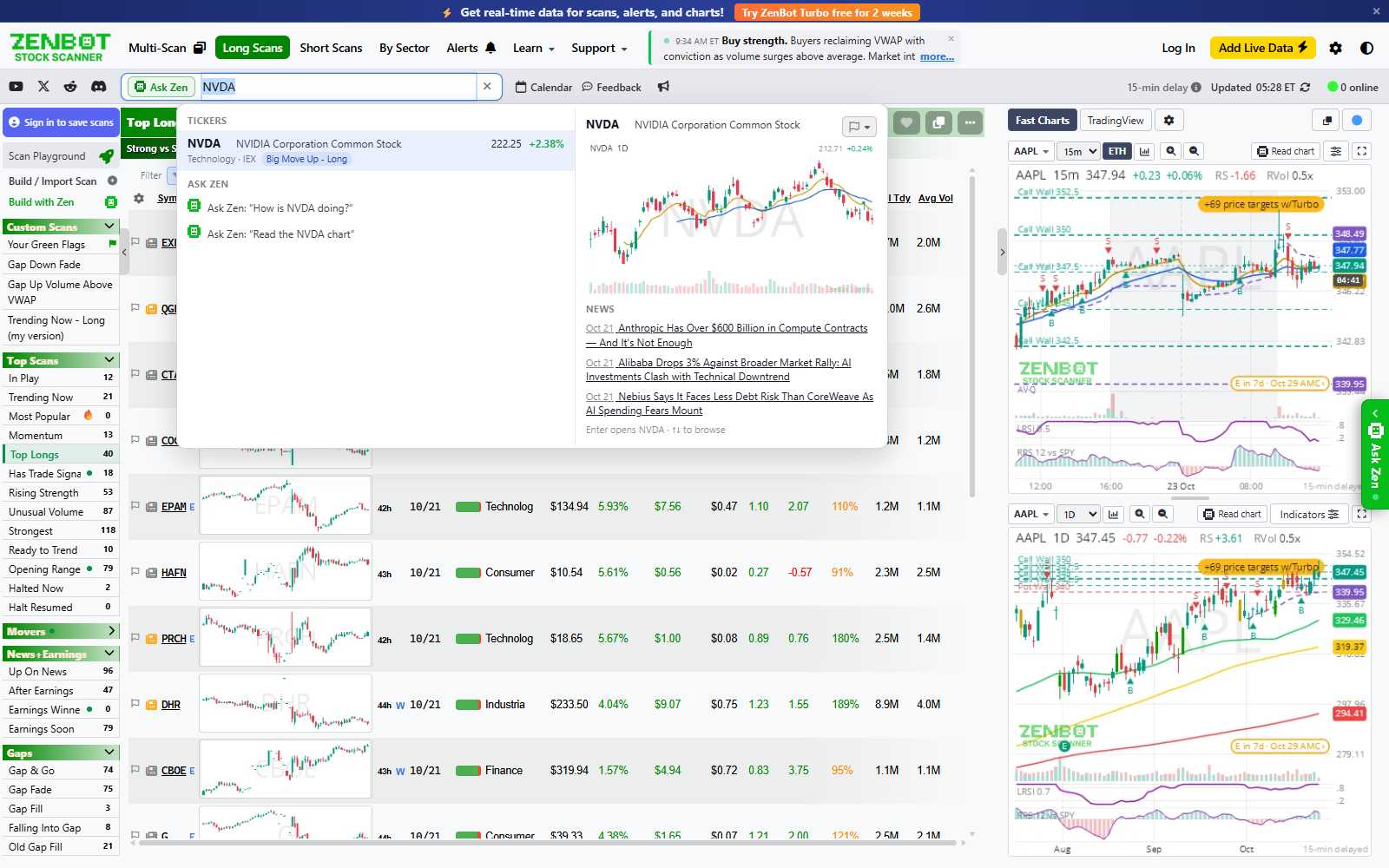
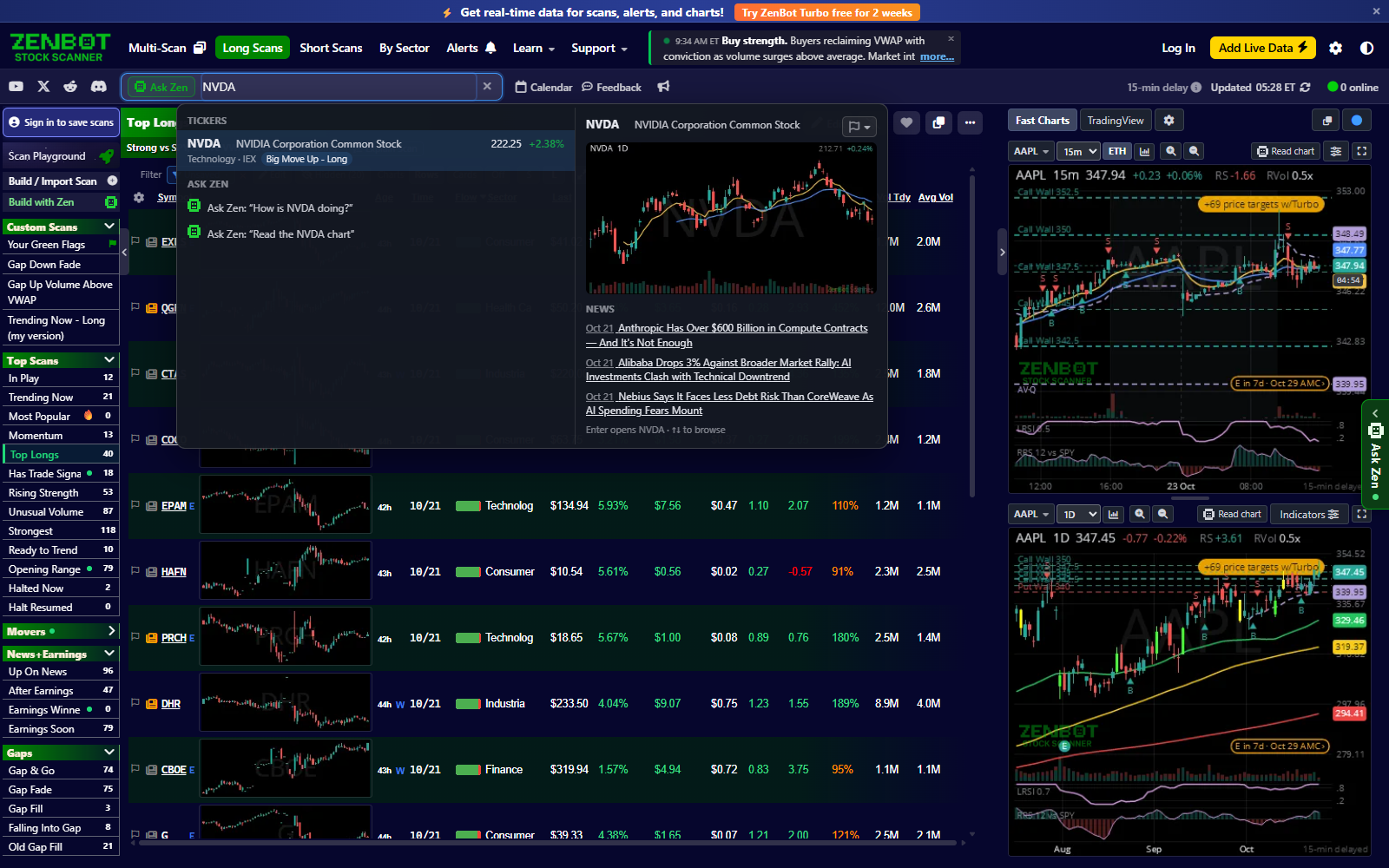
Every stock in the results, and the preview beside them, carries a bell: Set alert, or the count of alerts you already have on it. Signed out, the bell opens the alert dialog under a card that asks you to create a free account. See Stock alerts.
On a phone the search box, with the Ask Zen tag in it, runs across the top of the screen. In the card that opens for a stock, tap the chart to open the chart view.
Before you type, the box shows recent searches, the most viewed stocks right now and popular scans.
Type over a chart
My favorite shortcut: with the pointer outside a text field, just type a ticker or company name. A small box opens over the chart. Press Enter to load it.
With the pointer over a Fast Chart, type a timeframe the same way: 5m, 1h, 1D. The chart under the pointer switches to it. See Charts.